txAdmin login: address, port, lost password and team access
You open txAdmin in your browser at http://<your-server-IP>:<txAdmin-port>/. The default port is 40120, but at a host txAdmin often gets a different port from your server's range. Your first txAdmin login uses the four-digit PIN from the console and your Cfx.re account. Lost your password? Click Login with Cfx.re. If that doesn't work either, stop the server, rename txData/admins.json and, after a restart, create a new master account with a new PIN.
How to set up the rest of txAdmin (recipes, license key, restarts) is covered in Setting up txAdmin on your FiveM server.
txAdmin runs on port 40120 by default, but often on another port at a host
txAdmin is a web server that runs inside FXServer itself. According to the documentation, it listens on TCP port 40120 by default. That's a different port from the game's (30120); txAdmin even refuses to run on 30120, precisely to avoid confusion. On startup, the console shows a box with All ready! Please access: and the address below it.
Use http://, not https://: txAdmin no longer has built-in encryption (for https, the developers recommend a reverse proxy or Cloudflare Tunnel). And on a shared machine not every server can run on 40120, so the host picks a different port.
At MC-Node, go to the startup variables in the game panel, set the txAdmin switch (TxAdmin or Enable txadmin) from 0 to 1 and restart the server. If that variable is set to 0, FXServer starts directly with server.cfg and there's no txAdmin to log in to. The txAdmin Port variable (or txAdmin Poort) shows which port txAdmin uses; it's picked automatically from your server's ports. The address is the IP from the panel with that port after it. The steps are also in the knowledge base: how do I enable txAdmin.
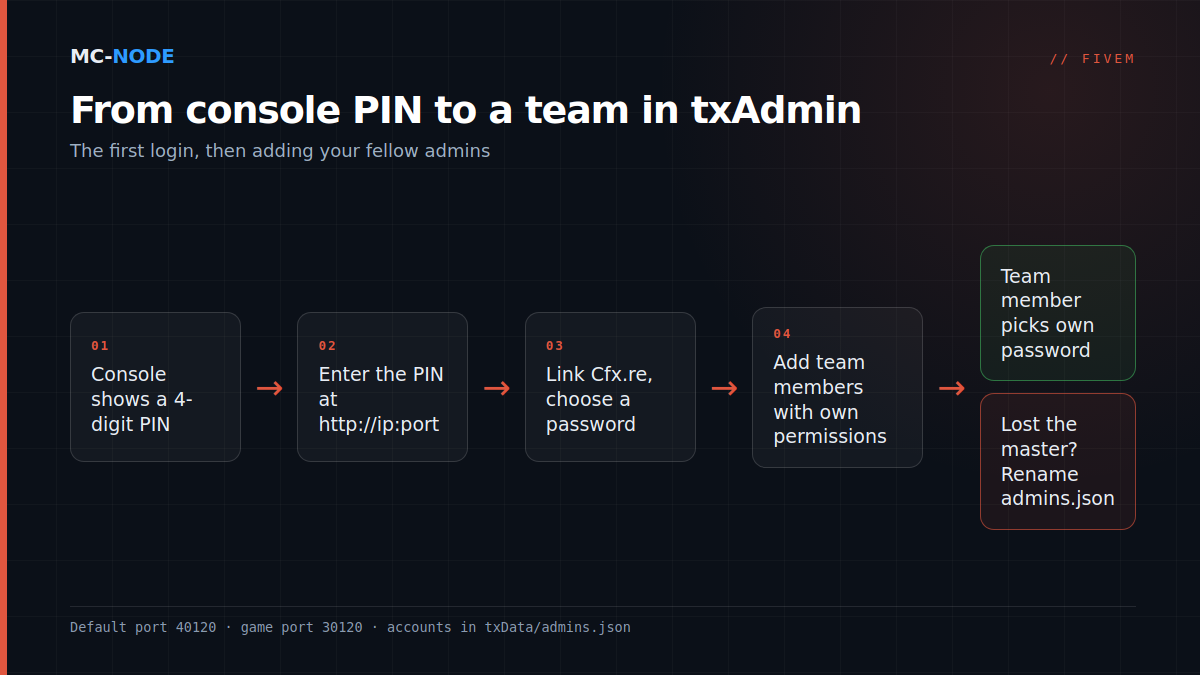
The first txAdmin login: PIN from the console, then your Cfx.re account
As long as there's no admins.json file in the txData folder, txAdmin generates a new four-digit PIN on every start and prints it in the console under Use the PIN below to register. When you open the address, txAdmin automatically sends you to the No Cfx.re account linked page. From there it goes like this:
- Enter the PIN and click Link Account.
- Log in with your Cfx.re account and confirm with Yes, Allow.
- Choose a Backup Password of 6 to 128 characters. The Discord ID field is optional.
That creates your main account, which txAdmin calls the master. The username is the name of your Cfx.re account. From then on you can log in two ways: with Login with Cfx.re, or with your username and backup password. For the master, Cfx.re is mandatory; team members can also have just a password.
Use your own Cfx.re account, not a friend's. Other admins can't edit or delete the master.
Lost your password or account: start with Cfx.re, only then admins.json
1. Log in with Cfx.re
If your account is linked to Cfx.re (always the case for the master), you don't need the password: click Login with Cfx.re. Note that changing your password under Your Account asks for the current password. So you can't replace a forgotten backup password there.
2. A team member has lost their password
The Admin Manager has no reset button. Delete the account and create it again; txAdmin then shows a new temporary password. If you fill in the team member's Cfx.re name while you're at it, they can also log in via Cfx.re from then on.
3. The master account is out of reach
If the Cfx.re login doesn't work and nobody knows the backup password, you make txAdmin start over. All admin accounts are stored in txData/admins.json; without that file, txAdmin asks for a PIN again.
- Stop the server in the game panel, not just FXServer inside txAdmin. txAdmin only checks whether
admins.jsonis missing when it starts up itself, and while it's running it puts back a modified file within 15 seconds. - Download
txData/admins.jsonvia the file manager as a backup copy, then rename it, for example toadmins.json.bak. - Start the server. The console shows a new PIN; go through the first-login steps.
- Add your team members again. Their accounts were in the same file, so they're gone.
Bans, warnings, the whitelist and the player history stay intact: they live in the player database playersDB.json in the profile folder, not in admins.json. If a team member still has all_permissions, they can also give you a new account; you're no longer the master then, but your team keeps its accounts.
Team members get their own account via the Admin Manager
You add team members on the Admins page. The master can do that, as can anyone with all_permissions or manage.admins.
- Click Add and choose a username in the New Admin window.
- Optionally, fill in the Cfx.re name (or a
fivem:ID) and the numeric Discord ID. They're not needed for the web panel, but they are for the in-game menu and the Discord bot. - Tick the permissions and save. txAdmin shows a temporary password once; the team member has to replace it on their first login.
A moderator usually gets by with players.warn, players.kick, players.ban and players.spectate. Keep console.write, control.server, server.cfg.editor, settings.write and manage.admins limited to a small core. all_permissions grants everything and overrides the other boxes. Anyone who isn't the master can't hand out permissions they don't have themselves.
txAdmin permissions are not the same as ACE permissions in server.cfg: the first govern the web panel, the second what someone is allowed to do in the server. How to combine them is explained in making yourself admin with ACE permissions and in moderation on your FiveM server.
Common error messages and what they mean
- The page doesn't load. Check
http://, the txAdmin port (not 30120), and whether txAdmin is enabled and the server has been restarted since. - Invalid Browser Session. txAdmin was probably restarted while you were logging in via Cfx.re. Go back and try again. After a txAdmin restart you have to log in again anyway: sessions are kept in memory.
- The Cfx.re account '…' is not an admin. That Cfx.re account isn't linked to any txAdmin account. Log in with your username and password, or have the master fill in your Cfx.re name.
- Connection to FiveM servers timed out. The Cfx.re login is temporarily unreachable. Use your backup password.
- Too many attempts. After ten login attempts within 15 minutes, txAdmin temporarily blocks your IP address by default. That applies to the PIN as well.
- No two-factor authentication to be found. txAdmin doesn't have it. A request for it was closed as not planned in August 2025. As the best protection, the maintainer names a Cloudflare Tunnel with Zero Trust Access, without direct access from the internet.
Security: one account per person, as few permissions as possible
The txAdmin port is open to the internet, and without two-factor authentication your password is the only key.
- No shared accounts. txAdmin logs every action under the admin's name. If three people share one login, you don't know who issued that ban and you can't take away access from just one person.
- Minimise permissions and clean up. Give people what they need right now, and delete the account of anyone who leaves on the same day.
- A strong, unique backup password. Preferably don't log in over public Wi-Fi: without https, your password travels over the line unencrypted.
- Be careful with scripts of unknown origin. According to the maintainer, a backdoor in a resource can read files containing admin credentials. How to spot one is covered in Installing FiveM scripts safely.
When you don't need any of this
If you run the server on your own, a single master with a Cfx.re link is enough. And if you don't really use txAdmin, leave it off (variable at 0): then there's no login page exposed and you handle everything via the console and server.cfg. You do lose the player list, bans and scheduled restarts.
No server yet? At MC-Node, txAdmin comes with every FiveM server, with DDoS protection and monthly cancellation. The smallest package, Small, costs €1.75 per month.
Frequently asked questions
What is txAdmin's default port?
By default, txAdmin listens on TCP port 40120, separate from the game port 30120. At a hosting provider, txAdmin often gets a different port from your server's range. The correct address is shown in the console at startup.
How do I reset my txAdmin password?
First log in with the 'Login with Cfx.re' button; you don't need the password for that. If that doesn't work, stop the server, rename txData/admins.json and start it again: the console shows a new PIN you can use to create a new master account. You'll have to add the other admins again afterwards.
Where do I find the txAdmin PIN?
In your server's console, after startup, under 'Use the PIN below to register'. The PIN has four digits and only appears as long as there's no admins.json in the txData folder yet. Every restart without a master account gives you a new PIN.
Does txAdmin have two-factor authentication?
No. A request for two-factor authentication was closed as not planned in August 2025. So protect txAdmin with a strong, unique password, one account per person and minimal permissions.