How to upload a Minecraft world to your server from singleplayer
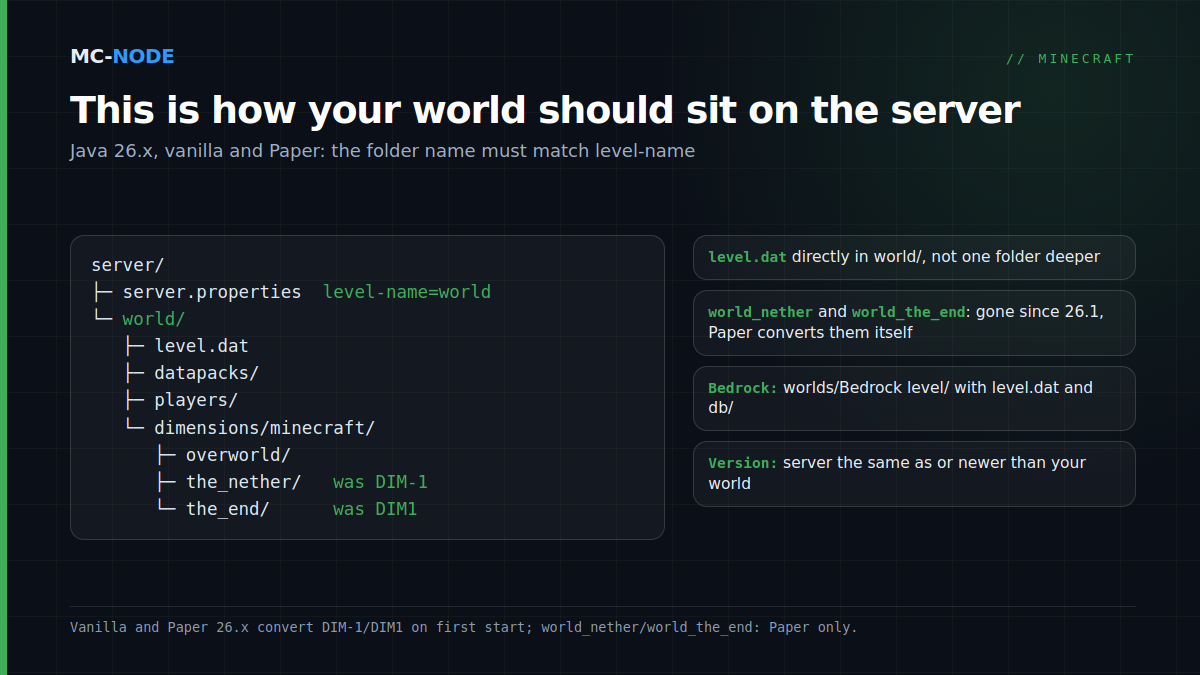
Uploading a Minecraft world to your server is, at its core, copying: you zip the folder of your singleplayer world from .minecraft/saves, stop the server, upload the zip and extract it in the server's root folder, and make sure the folder name matches level-name in server.properties. The server has to run the same Minecraft version you last played the world in, or a newer one. Bedrock works the same way, except that the world belongs in worlds/<level-name>.
Where is your singleplayer world stored?
On Java, every world is a separate folder inside the saves folder of your Minecraft installation:
- Windows:
%APPDATA%\.minecraft\saves - macOS:
~/Library/Application Support/minecraft/saves - Linux:
~/.minecraft/saves
It's quicker from inside the game: choose Singleplayer, select the world, click Edit and then Open World Folder. Don't copy a world that's still open: it may be only half saved. On the same screen, Make Backup instantly creates a zip of the world, which you'll find via Open Backups Folder and can upload just like that.
You can recognise a world from 26.1 or newer by the dimensions and players folders next to level.dat. Since 26.1, your own inventory is stored in players too, and no longer in level.dat. Older worlds still have region, DIM-1 (Nether) and DIM1 (End). You can upload either kind.
Upload a Minecraft world to your server in five steps
- Check the version (see which Minecraft version is my server running?). Newer than your world is fine: the server converts it on first start. Older is not.
- Zip the world folder. Zip the folder itself (for example
My World), not just its contents. One zip uploads much faster than loose files. - Stop the server and make a backup. A running server writes its own world to disk when it shuts down, right over your upload. With a backup in the panel you can always go back.
- Upload and extract. Upload a small world to the root folder using the game panel's file manager; then choose Unarchive on the zip. On some nodes the upload limit is around 100 MB. Larger worlds go via SFTP: under Settings, SFTP Details shows the address with port 2022 (not 22) and your username: your panel name, a dot and an eight-character server code. The password is your panel password (see connecting with WinSCP or FileZilla).
- Get the name right. The server loads the folder named after
level-name=, which isworldby default. Rename the oldworldto something likeworld-oldand your uploaded folder toworld, or setlevel-name=to the name of your folder.
Start the server and keep an eye on the console. If the world dates from before 26.1, you'll see Starting upgrade for world while the server converts the folders. For a world that hasn't run on Paper 26.x yet, Paper 26.x first reports World storage migration is required and then waits 30 seconds; if you have a backup, let it carry on. Then join and take a quick walk through the Nether and the End.
Nether and End: no more world_nether on Paper since 26.1
Older guides mention world_nether and world_the_end: up to and including 1.21.x, Paper, just like Spigot, split a world into three folders. If you upload a singleplayer world to Paper 1.21, Paper moves world/DIM-1 to world_nether/DIM-1 and world/DIM1 to world_the_end/DIM1 by itself on first start (Migration of old nether folder required), but only if nothing is there yet. So rename the old world_nether and world_the_end as well, or you'll end up with the Nether and End of your old world.
Since 26.1, Minecraft keeps all dimensions inside the world folder, in dimensions/minecraft/overworld, the_nether and the_end, and Paper follows that layout. On first start, Paper 26.x converts both an old singleplayer world (with DIM-1) and an old Paper backup (with world_nether and world_the_end) to that structure, after which the separate folders are gone. In our test with Paper 26.3, blocks in the Nether and End stayed right where they were after the conversion. So for an old Paper backup, upload all three folders.
Datapacks come along automatically
The datapacks of your singleplayer world live in datapacks inside the world folder, so they travel with it. After starting, check with datapack list enabled that they're active: a pack made for an older version can end up disabled after a version jump. More on that in installing a datapack.
Bedrock: export as .mcworld or copy the folder itself
On Windows, you export a Bedrock world via Edit on the world and then Export World. That gives you a .mcworld: an ordinary zip with a different extension. According to the community wiki minecraft.wiki, this is only possible on Windows. On Android and iOS, you copy the world folder itself out of minecraftWorlds (on Android only with external storage); on Windows, that folder has been located at %appdata%\Minecraft Bedrock\Users\<id>\games\com.mojang\minecraftWorlds since 1.21.120. The folder names there are codes; the real name is in levelname.txt.
On the server, the world belongs in worlds/<level-name>, which is worlds/Bedrock level by default. Stop the server, rename the existing folder (for example to Bedrock level-old) and create an empty folder with the old name. Rename the .mcworld to .zip, upload it to that folder and extract it there: level.dat and db must sit directly inside it. Keep the game and the server on the same version; why that matters so much on Bedrock, you can read in Bedrock 26.50 and your server.
Moving a Realms world to your own server
On Java, open Minecraft Realms, choose Configure, then World Backups and Download Latest. The world shows up among your singleplayer worlds; from there, follow the steps above. On Bedrock, the owner chooses Download World in the Realm's edit screen; a local copy appears with - Copy after its name, which you then export. Still not sure? Read Realms or your own server.
Common mistakes (and how to fix them)
- Folder nested twice. After extracting, you end up with
world/My World/level.dat. The server then finds nolevel.datinworldand creates a new world next to it.level.datmust sit directly in the folder thatlevel-namepoints to. - Wrong name. A typo in
level-namehas the same result: a fresh world under that name. - A new world got generated anyway? Your upload is still there. Stop the server, move your uploaded folder out of the new world if needed, then delete the new world and fix the name.
- Server older than the world. Downgrading isn't supported. In our test, Paper 26.2 refused a world from 26.3 (
Server attempted to load chunk saved with newer version of minecraft!), vanilla 26.2 loaded it with parts of the chunk data replaced by default values, and 1.21.11 didn't start at all. Note: as of 30 September 2026, Paper builds for 26.3 are still in beta. How to update safely: updating to the yearly versions. - Seed and difficulty.
level-seedinserver.propertiesdoes nothing for an existing world. The server can, however, pick up the difficulty fromserver.properties; check it withdifficultyin the console. - Can't build at spawn. Give yourself permissions with
op <name>in the console. By default,spawn-protection=16protects the area around spawn from players without op rights.
When you don't need this
If you just play now and then with someone in the same house, Open to LAN in the pause menu is enough. Want a fresh start instead? Read resetting your Minecraft world. Moving a complete server with plugins from another host? Then the world alone isn't enough: see moving your Minecraft server.
No server yet? The plans are in the Minecraft store, where Redstone (5 GB, €5.50 per month) is the recommended plan. Everything runs on NVMe storage with DDoS protection and can be cancelled monthly.
Frequently asked questions
Where is my Minecraft world stored on my PC?
On Java, every world is its own folder in .minecraft/saves: on Windows %APPDATA%\.minecraft\saves, on macOS ~/Library/Application Support/minecraft/saves and on Linux ~/.minecraft/saves. In the game you can also get there via Singleplayer, Edit and Open World Folder.
Why does my server create a new world after uploading?
The server can't find a level.dat in the folder named after level-name in server.properties. Usually the world ends up one folder too deep after extracting, or the name doesn't match. Stop the server, set your uploaded folder aside, delete the new world and make sure level.dat sits directly in the right folder.
Can I put a world from a newer Minecraft version on an older server?
No, downgrading isn't supported. Depending on the software, the server refuses the world, doesn't start or chunks get damaged. Put the server on the same or a newer version and always make a backup first.
How do I put a Bedrock world on my server?
Export the world on Windows as .mcworld (a zip), rename it to .zip and extract it on the server into an empty folder worlds/<level-name>, worlds/Bedrock level by default. Stop the server first and rename the old world folder; level.dat and db must sit directly in the new folder.