Move your Valheim world to a dedicated server (plus 1.0 backups)
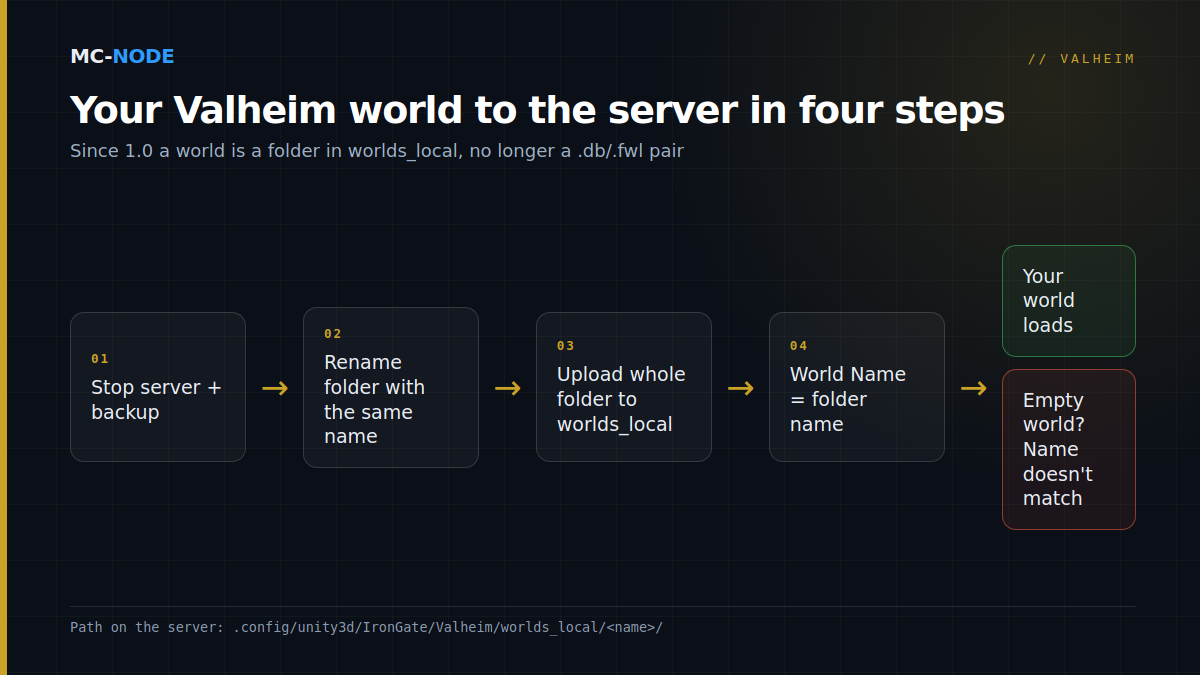
Since Valheim 1.0, a world no longer consists of a .db and a .fwl file, but of its own folder named after the world. To move it to your dedicated server, stop the server, upload that entire folder to .config/unity3d/IronGate/Valheim/worlds_local/ and set the world name (-world) to exactly the folder name. An old world from before 1.0 works too: the server converts it the first time it loads, and Valheim makes a backup first.
What 1.0 changed about saves
Iron Gate tested the new save system in the public test version in the spring (patch 0.221.13) and released it with 1.0 on 9 September 2026. According to the patch notes:
- Worlds are no longer saved as a
.dbplus a.fwl, but each in its own folder. The old.dbfile has been split into smaller pieces (chunks). - When the game saves, it only writes the chunks that have changed since the last save. That's faster and holds up better if something crashes mid-save.
- Backups get their own folders.
- If the game loads a world that hasn't been saved in chunks yet, it makes a backup first.
- Characters don't change: only worlds use the new system.
A world folder like that contains files such as _main.12.db2, _main.12.fwl2 and _main.12.chunks, plus lots of individual chunk files. The number goes up with every save. What that means for you: never copy a few loose files, always copy the complete folder.
Valheim world file location: where your world is stored
- On your PC (Steam):
%USERPROFILE%\AppData\LocalLow\IronGate\Valheim\worlds_local. Paste that path into the address bar of File Explorer. - In the Steam Cloud: cloud worlds aren't in
worlds_local. First move the world to local storage via Manage Saves in the world menu. - On the server: in the default save path, on Linux
~/.config/unity3d/IronGate/Valheim/worlds_local, unless the server was started with-savedir. At MC-Node, open the hidden folder.config/unity3d/IronGate/Valheim/worlds_localin the Files tab. - On a console: according to the 1.0 FAQ, you can use an Xbox world on PC if you launch the game via the Microsoft Store. Beyond that, saves aren't synced between platforms. Iron Gate doesn't describe a way to get a world from PS5 or Switch 2 onto a server.
Uploading your own world to a dedicated server, step by step
- Close Valheim on your PC, so the world has been fully written to disk.
- Stop the server in the panel and make a backup in the Backups tab (see making a backup).
- On the server, open
.config/unity3d/IronGate/Valheim/worlds_local/. Is there already a folder with the same name? Rename it, for example toMidgard-old. Never upload on top of an existing world, because old and new files will get mixed up. - Upload the complete world folder. It's a lot of small files, so it's easiest with WinSCP or FileZilla.
- In the Startup tab, set the World Name variable to exactly the folder name, with the same capital letters. The server runs on Linux, where
Midgardandmidgardare two different folders. - Start the server, watch the Console and join. Once you recognise your base, you can delete the renamed old folder later on.
A world from before 1.0
Still have an old world as Midgard.db and Midgard.fwl, for example from a backup? Then upload both files to worlds_local, set World Name to Midgard and start the server. It converts the world to the new format the first time it loads and makes a backup beforehand. Make sure the server is up to date when that happens. In our panel, Auto Update is on by default, so the server fetches the latest version every time it starts.
Updating matters because of a bug in the first 1.0 versions. During the conversion, items on item stands and armour stands lost their level and variant. Iron Gate fixed that in patch 1.0.12: worlds converted since then come through fine. Was your world converted in the first few days, and are the weapons, armour or fish on your stands missing their level? In patch 1.0.15, Iron Gate mentions two solutions:
- Revert the world to the backup that was made during the conversion. You'll lose everything you've done in that world since then.
- Open a copy of that backup, take the affected items with your character and replace them in your normal world. That works because characters are saved separately from worlds.
Backups in 1.0: three layers
1. Valheim's own autobackups. By default the server keeps 4 backups: the first after 2 hours (-backupshort 7200), the rest 12 hours apart (-backuplong 43200). On top of that, it saves the world every 30 minutes (-saveinterval 1800). In our panel, those are the startup variables Aantal automatische wereldbackups (number of backups), Eerste wereldbackup-interval (first interval), Volgende wereldbackup-interval (next interval) and Opslaginterval (save interval). These backups rotate: the oldest one disappears. If something goes wrong with your world, stop the server first. As long as it keeps running, your good backups get overwritten over time.
2. Panel backups. A backup in the Backups tab contains the whole server, so the world and the admin lists too. How to restore or download one is explained in the knowledge base. Make one before every major change: an upload, a big update or turning on mods.
3. Your own copy. Every now and then, download the whole worlds_local folder to your PC via SFTP. That way you have a copy outside the server.
Iron Gate hasn't described step by step how to restore one of Valheim's own autobackups on the server. The Manage Saves menu in the game restores worlds and backups on your own PC, not on the server. For the server, the panel backup is the simplest route.
Common mistakes
- The world name doesn't match. A new name means a new world. So a typo or a wrong capital letter gives you an empty world, not an error message. Stop the server, correct the name and start it again.
- Only uploading individual files. Since 1.0, a world is the whole folder.
- Uploading over an existing folder. Rename the old folder first.
- Uploading while the server is running. On its next save, the server writes its own version.
- Not being able to find the world. Then it's probably in the Steam Cloud instead of in
worlds_local.
When you don't need to upload anything
If you're starting fresh, the server creates a world by itself on the first start, with the name from World Name. If you just want to know whether you need a new world for the Deep North, read Valheim 1.0 and the Deep North update. No server yet? A Valheim server at MC-Node starts at €3.00 per month. It runs on our own hardware with NVMe in Hengelo or on our nodes in Frankfurt, Warsaw and Beauharnois, with DDoS protection, backups in the panel and monthly cancellation.
Frequently asked questions
Where is my Valheim world stored since 1.0?
On a Windows PC in %USERPROFILE%\AppData\LocalLow\IronGate\Valheim\worlds_local, as a folder named after your world. On a Linux server, the same folder is under .config/unity3d/IronGate/Valheim/worlds_local. Worlds in the Steam Cloud aren't there; move those to local storage first.
How do I put my own Valheim world on a dedicated server?
Stop the server, make a backup and upload the complete world folder to worlds_local on the server. Then set the world name (-world, World Name in our panel) to exactly the folder name and start the server. If the name doesn't match, the server creates a new, empty world.
Can I still use a Valheim world from before 1.0?
Yes. Upload the .db and .fwl files to worlds_local and start the server with that world name; the first time it loads, Valheim converts the world to the new format and makes a backup beforehand. Make sure the server is on at least version 1.0.12, because earlier versions lost the level of items on stands during the conversion.
Can I move my PS5 or Switch 2 world to a server?
Iron Gate doesn't describe a way to do that. According to Iron Gate, only Xbox saves can be used on PC, if you launch the game via the Microsoft Store; beyond that, saves aren't synced between platforms. Console players can still join a server with crossplay turned on, though.