Project Zomboid server mods: Workshop IDs, Mod IDs and Build 42
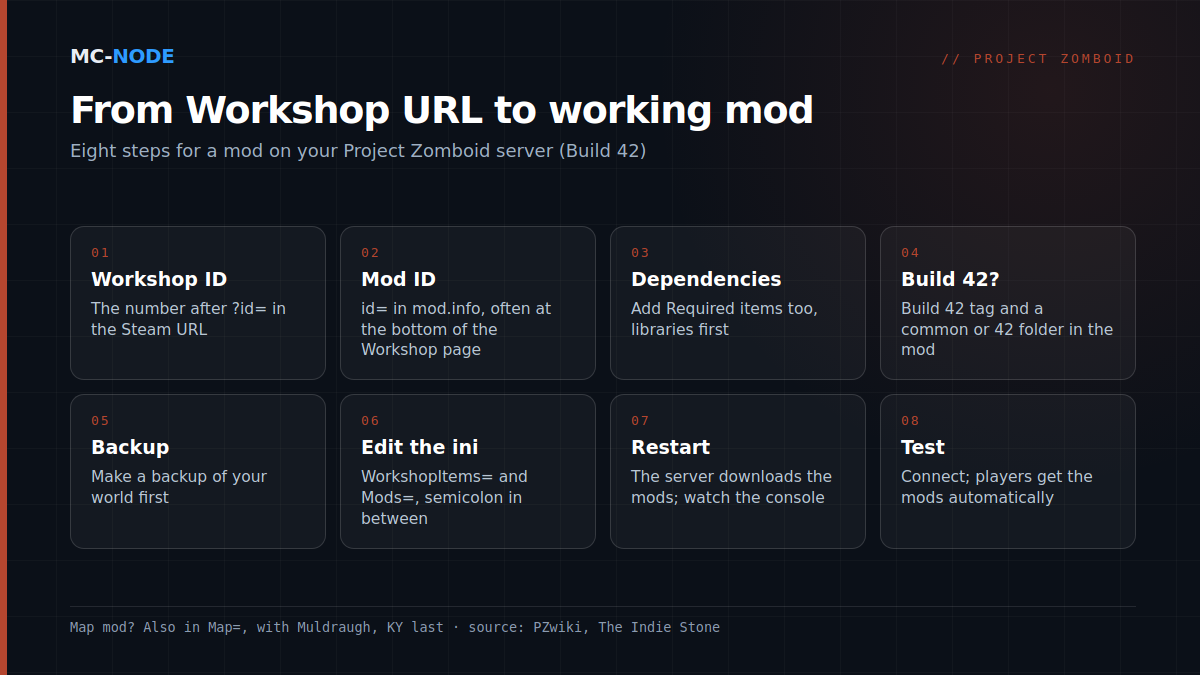
A mod on your Project Zomboid server needs two pieces of information: the Workshop ID, the number after ?id= in the Steam URL, and the Mod ID, the id= line from the mod.info file. The Workshop ID goes in WorkshopItems=, the Mod ID in Mods=, both in your server's .ini file and separated by semicolons. A map mod also has to go in Map=. After a restart, the server downloads the mods by itself, and players get them automatically when they connect.
Workshop ID and Mod ID: two numbers for one mod
The Workshop ID tells the server which item to download from Steam. You'll find it in the address bar: in steamcommunity.com/sharedfiles/filedetails/?id=1234567890, 1234567890 is the Workshop ID.
The Mod ID tells it which mod from that download to activate. It's in mod.info on the id= line, and for many Zomboid mods also at the bottom of the Workshop description as Mod ID:. The distinction exists because one Workshop item can contain several mods, such as an optional component or a separate version, each with its own mod.info. So one Workshop ID can go with two or three Mod IDs; you choose which ones to enable.
The .ini file: WorkshopItems=, Mods= and Map=
The server settings outside of gameplay live in <servername>.ini in the Zomboid/Server folder; without a custom name, that's servertest.ini. If you start the server under a different name (-servername), it reads a different .ini file and creates a new world. The three lines for mods:
WorkshopItems=1234567890;2345678901
Mods=ModOne;ModTwo;ModTwoExtra
Map=MapModName;Muldraugh, KY
Map= doesn't take the Mod ID but the map's folder name, as it appears in the mod under media/maps/. Muldraugh, KY is the default value, the base map; put it last. If it's at the front, it overrides the mod maps: according to the wiki, that's the usual cause of maps that don't load or are cut off. Two map mods covering the same cells clash, and then one of them won't load.
In our game panel you edit the .ini file in the file manager and restart from the console, where you can also see whether the downloads succeed. If your server has a field for the server name in the startup variables, that field decides which .ini file gets loaded. See also installing mods via the Steam Workshop in the knowledge base.
Load order and dependencies
Many mods rely on another mod, often a library. On the Workshop page it's listed on the right under Required items, and in mod.info on the require= line. A required mod like that belongs in both lists: Workshop ID in WorkshopItems=, Mod ID in Mods=. If it's missing, the mod shows up red in the in-game mod list.
The Build 42 mod manager has a load order. A safe habit in Mods=: libraries first, the mods that use them after. Avoid modpacks that re-upload other people's mods unchanged: when the creator updates the original, you're stuck with the old copy, and that's where version errors come from. A Workshop collection is the clean alternative.
What Build 42 changed for mods
Since 29 July 2026, Build 42 (42.20.0) has been the stable version. For server admins, three things changed.
1. The folder structure. A Build 41 mod has media/ directly next to mod.info. Build 42 looks one level deeper, in common/ and/or a version folder such as 42/:
Build 41              Build 42
mods/MyMod/           mods/MyMod/
  mod.info              common/
  media/                  media/
                        42/
                          mod.info
                          media/
Without one of those two folders, Build 42 doesn't recognise a mod. Creators can put both structures in a single upload, so some of the older mods do work. For each mod, check for the Build 42 tag on the Workshop page and look at the date of the last update.
2. Build 41 stays separate. Build 41 saves don't work in Build 42. If you want to keep an old mod list, both the server and the players have to switch to the legacy41 beta branch.
3. Mod IDs are tied to the Workshop ID. Build 42 links a Mod ID to its Workshop ID; according to The Indie Stone, that's meant to prevent mismatches when two uploads use the same Mod ID. Guides for Build 42 sometimes show Mods= lines with a backslash in front of each Mod ID (\ModOne;\ModTwo); the wiki page for 42.20 doesn't describe that notation, and the guides contradict each other. Here's how to be sure: set up the mods once via Host > Manage Settings in your own game, save, and copy WorkshopItems= and Mods= from the .ini file the game writes to Zomboid/Server on your PC.
"Workshop item version is different than server's" and checksum errors
To prevent cheating, the player's files and the server's files have to be identical: DoLuaChecksum=true kicks players whose files don't match, and since 42.20.0 XML files count as well. A well-known message, "Workshop item version is different than server's", usually appears because a mod was updated on the Workshop while the server still has the old version, or the other way round. Work through it in this order:
- Restart the server. On startup it fetches new versions of the Workshop mods.
checkModsNeedUpdatein the console writes to the log whether a mod has been updated. - If the server stays stuck on an old version, the Steam manifest may be to blame. Make a backup, then delete
appworkshop_108600.acfinsteamapps/workshopin the server's installation folder; on the next start it downloads the mods again. - On the player's side: close the game, unsubscribe from the mod, restart Steam, subscribe again. If that doesn't help: Properties > Installed Files > Verify integrity of game files. A local copy of the same mod in
Zomboid/modsclashes with the Workshop version; remove it. - Same game version. Anyone still on
legacy41in Steam gets a version mismatch on a Build 42 server.
Don't set DoLuaChecksum to false just to get rid of the messages: you'd be switching off a protection, and the cause would still be there.
Updating mods without surprises
Workshop mods update themselves on Steam; your server picks up the new version at the next restart. So a fixed daily restart at a quiet time prevents a lot of version errors. Warn players with servermsg "Restart in 5 minutes" in the console.
Game updates are where it gets tense: with 42.20.4 (26 August), for example, loadstring and loadstream were removed, and mods that used them had to be updated. Make a backup in the panel before big changes, wait after a patch until your most important mods have been updated, and add new mods one at a time. Removing mods from a running world is riskier than adding them: according to the wiki, items can be lost for good in the process.
When you shouldn't go for a 100-mod pack
A hundred mods is possible, but it costs you in three places:
- Memory. The wiki counts at least 3 GB for the server plus roughly 0.5 GB per additional player, and more as the mods use memory. So four players without any mods already come to 5 GB.
- Startup time. The server checks and loads every mod when it starts; updated mods get downloaded again first.
- Stability and security. Every mod is a chance of something breaking after a patch, and with a hundred mods, finding the culprit is real work: the wiki recommends halving the list until you've found it. Mods also run code: in April 2026, fourteen Workshop mods containing malicious code were removed, after being installed on 500 to 2,200 devices. Stick to well-known creators.
If your group of friends is going to play for a few weeks, vanilla plus five to ten mods the group really misses is usually the better choice. As for packages: with mods, Amateur (2 GB, €3.00) is too tight. Traveller (6 GB, €9.00) suits four players with a modest mod list, Explorer (8 GB, €12.00) gives room for more, and lots of mods with lots of players call for Maintainer (12 GB, €18.00) or Chief (16 GB, €24.00). All Project Zomboid packages come with NVMe storage and DDoS protection, can be cancelled monthly and run in the Netherlands, Germany, Poland or Canada. No server yet? See starting a Project Zomboid server.
Frequently asked questions
Where do I find the Mod ID of a Project Zomboid mod?
For many mods it's at the bottom of the Workshop description, as 'Mod ID:'. Otherwise, open the mod's mod.info file: the id= line is the Mod ID. The Workshop ID is the number after ?id= in the Steam URL.
Do Build 41 mods work on a Build 42 server?
Usually not: Build 42 only loads a mod if it has a common folder or a version folder such as 42, and pure Build 41 mods don't have either. Check whether the mod has the Build 42 tag on its Workshop page, or put both the server and the players on the legacy41 beta branch.
How do I fix 'Workshop item version is different than server's'?
First restart the server so it fetches the latest version of the mod. If that doesn't help, have the player unsubscribe from the mod, restart Steam and subscribe again. If the server hangs on to an old version, make a backup and then delete the Steam manifest appworkshop_108600.acf on the server; on the next start it downloads the mods again.
How much RAM does a Project Zomboid server with mods need?
The official wiki counts at least 3 GB for the server plus roughly 0.5 GB per additional player, plus whatever the mods use. For four players with a handful of mods, 6 GB is a reasonable starting point; with lots of mods or players, go for 8 GB or more.