How do I check my KVM's resource usage?
Viewing the resource usage of Windows/KVM VPSes.
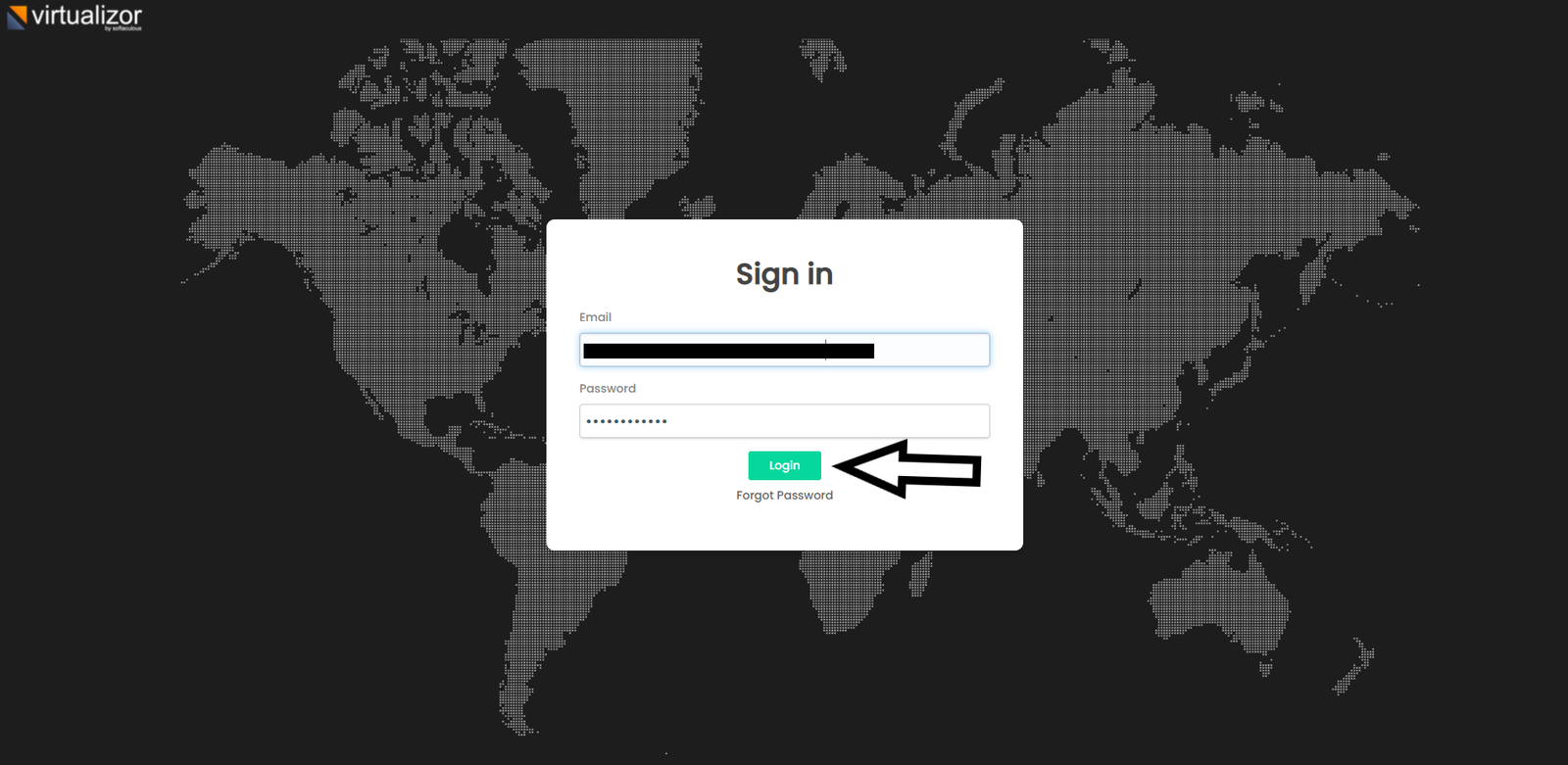
- Log in to your VPS panel.
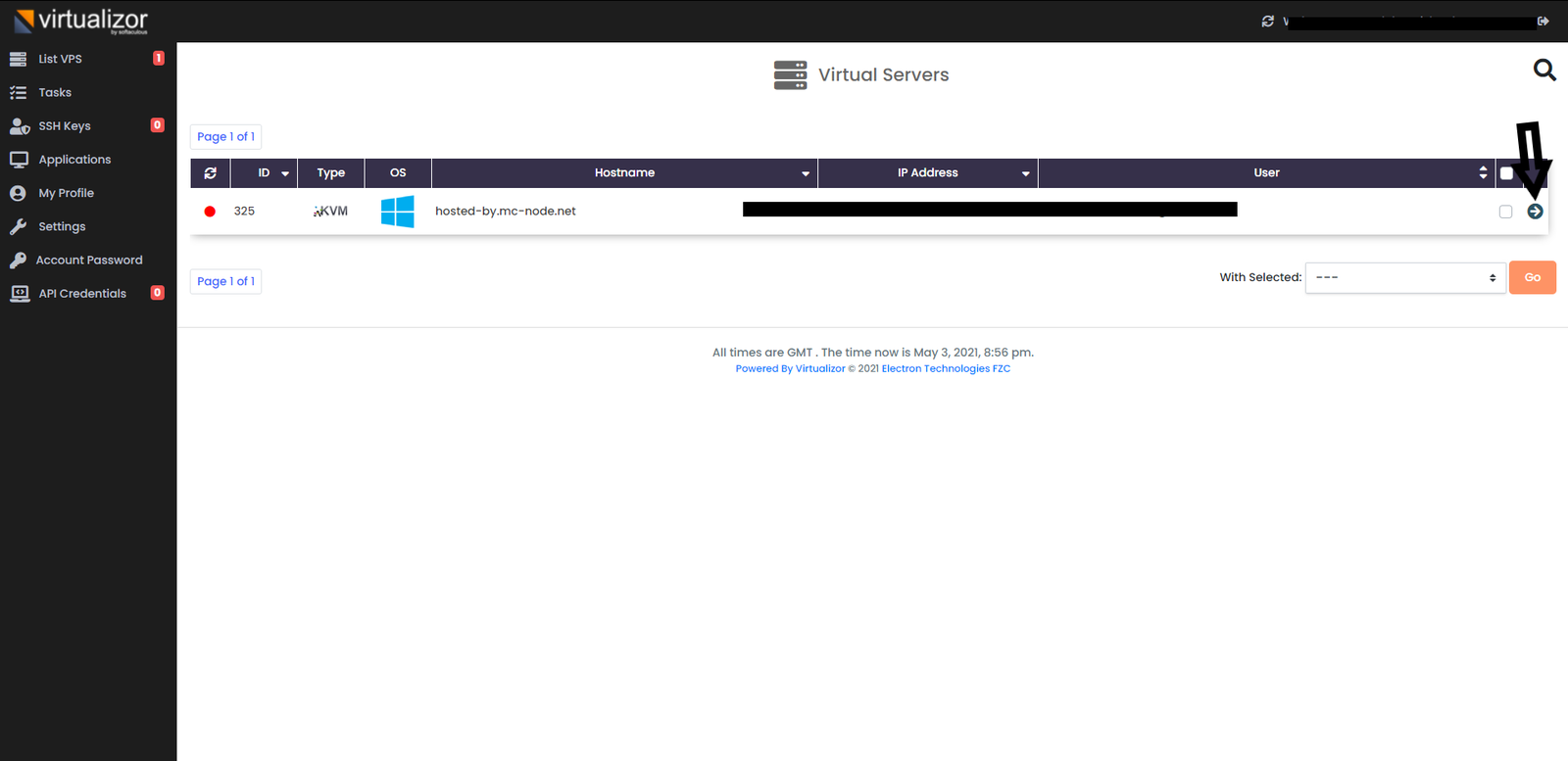
- Select the VPS whose usage you want to view by clicking the arrow on the right-hand side.
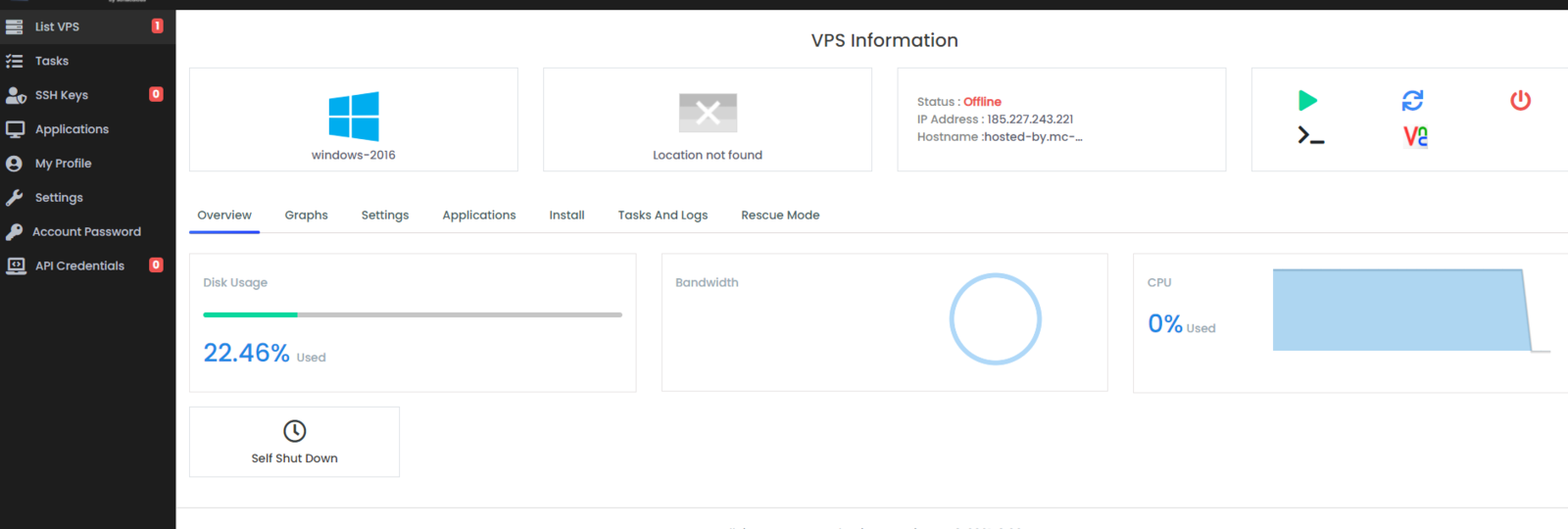
- Here you can see all the information about your VPS and what it is using.
- Log in to your VPS with the root credentials via SSH. Not sure how to do this? First check our knowledge base article How do I connect via SSH.
- Want to check the disk space? You do this by running the following command:
df -h
- df: stands for Disk Free, in other words: how much space is in use and how much space is free.
- -h: stands for human readable. This option makes the output of df easy to read in a clear overview.
With this command you can see how much disk space is being used and how much is still free. Below you can see what everything means:
- Size: the total disk space in GB
- Used: the disk space in use in GB
- Avail: the available disk space in GB
- Use: the used disk space as a percentage
- Want to see the processes running on your VPS? You do this by running the following command:
htop
With this command you can see which processes are running on your VPS. Below you can see what everything means:
- PID: stands for Process ID, this is the number of the process
- USER: tells you which user this process belongs to
- %CPU: shows what percentage of the processor this process is using
- %MEM: shows what percentage of the total memory this process is using
- TIME: tells you how long this process has been active
- COMMAND: tells you which process this actually is
You can also sort this overview by different columns. For example:
- For %CPU: shift + P
- For %MEM: shift + M
When you press 'X' on your keyboard, you can give the sorted items a specific color. Press 'ESC' to exit this overview.
- Want to see how much memory is being used? You do this by running the following command:
free -h
You use this command to see how much memory (RAM) is being used and how much is still free. Below you can see what everything means:
- Total: your total memory in GB
- Used: your used memory in GB
- Free: your free memory in GB or MB
Ready to try it yourself?
View packages →Launch your server in 60 seconds on our own hardware.
Stuck? Our team is happy to help.Open a ticket →
More in this category
How do I activate my Windows license?Connect to your VPS via remote desktop, open cmd, run slmgr.vbs -rearm and restart the VPS to activate your Windows liceHow do I change my operating system?Changing the operating system on an OpenVZ VPS: go to the VPS panel, log in with the details from your mailbox, click yoHow do I change my root password?Go to the VPS Panel and log in with the credentials delivered to your mailbox. Click your VPS, click "Root/Admin PassworHow do I change the hostname of my VPS?Change the hostname of your VPS: log in to the VPS panel, select your VPS, click "Hostname", enter a new hostname and cl