How do I install a VPN?
You can use various software for a VPN. In this tutorial we will install WireGuard and OpenVPN!
What is a VPN?
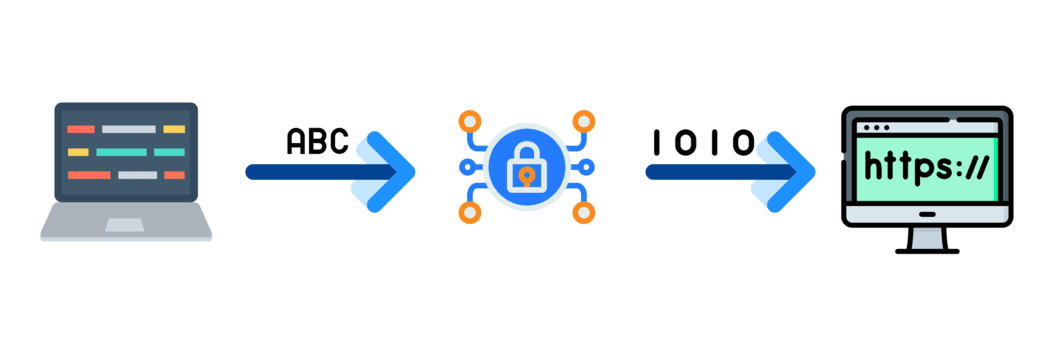
A VPN is a secure tunnel on the internet that encrypts your internet traffic and protects your online privacy. It ensures that no one else can see what you do on the internet and where you are. For example, you can safely use public Wi-Fi networks and bypass geographic restrictions to access content that would otherwise not be available. Your own IP address is also hidden this way.
What is the difference between WireGuard and OpenVPN?
WireGuard is faster, more secure and easier to configure than OpenVPN, but has less support because it is a relatively new technology. WireGuard and OpenVPN are both secure for setting up VPN connections. But because WireGuard uses newer cryptographic technologies, it is generally considered more secure. WireGuard can only be installed on a Premium VPS, not on a Budget VPS!
Jump straight to the installation for WireGuard
Jump straight to the installation for OpenVPN

WireGuard installation
- Make sure your VPS has the latest packages. You can do this with
sudo apt update && sudo apt upgrade. Type yes if necessary. - Download the installation script from github. You can do this with the following command:
curl -Ohttps://raw.githubusercontent.com/angristan/wireguard-install/master/wireguard-install.sh - Make sure the file is executable. You can do this with the following command:
chmod +xwireguard-install.sh - Now start the installation. You can do this with the following command:
./wireguard-install.sh - Once you have started the installation, you will get a number of options; enter the following
IPv4 or IPv6 public adress: IP address of your VPS
Public interface: <press enter>
WireGuard interface name: <press enter>
Server WireGuard IPv4: <press enter>
Server WireGuard IPv6: <press enter>
Server WireGuard port [1-65535]: 51820
First DNS resolver to use for clients: 8.8.8.8
Second DNS resolver to use for clients (optional): 8.8.4.4
Allows IPs list for generator clients (leave default to route everything): <press enter>
<press enter>
Client name: <For example: laptop>
Client WireGuard IPv4: <press enter>
Client WireGuard IPv6: <press enter>
The installation is now complete. To copy the details, run the following command: cat wg0-client-<client name>.conf. You will then get a number of lines of text. Copy this and paste it into your WireGuard.
- Once you have downloaded and opened WireGuard, press ctrl + N and paste the text you just copied from your SSH. Under 'Name' you can enter a name yourself.
- Now click 'Save' and then 'Activate'.

OpenVPN installation
- Make sure your VPS has the latest packages. You can do this with
sudo apt update && sudo apt upgrade. Type yes if necessary. - Download the installation script from github. You can do this with the following command:
curl -Ohttps://raw.githubusercontent.com/angristan/openvpn-install/master/openvpn-install.sh - Make sure the file is executable. You can do this with the following command:
chmod +xopenvpn-install.sh - Now start the installation. You can do this with the following command:
./openvpn-install.sh - Once you have started the installation, you will get a number of options; enter the following
IP address: <press enter>
Do you want to enable IPv6 support (NAT)? [y/n]: n <press enter> What port do you want OpenVPN to listen to? 1) Default: 1194 2) Custom 3) Random [49152-65535]
Port choice [1-3]: 1 What protocol do you want OpenVPN to use?
UDP is faster. Unless it is not available, you shouldn't use TCP. 1) UDP 2) TCP
Protocol [1-2]: 1 What DNS resolvers do you want to use with the VPN?
DNS [1-12]: 3 Do you want to use compression? It is not recommended since the VORACLE attack makes use of it. Enable compression? [y/n]: n Customize encryption settings? [y/n]: n Tell me a name for the client.
Client name: (You can choose this yourself) Do you want to protect the configuration file with a password? 1) Add a passwordless client 2) Use a password for the client
Select an option [1-2]: 1
Congratulations! The installation is complete and you have created a user!
Download the latest OpenVPN version at https://openvpn.net/community-downloads/- Download and install OpenVPN. Follow the steps in the install wizard.
- Download the OpenVPN profile from your VPS. To do this, you need to connect to your VPS via FTP. If you don't know how to do this, we have a tutorial here: How do I open an SFTP session to my VPS?
- Find the file on your PC and drag it into your OpenVPN config folder. This is usually
C:\Program Files\OpenVPN\config

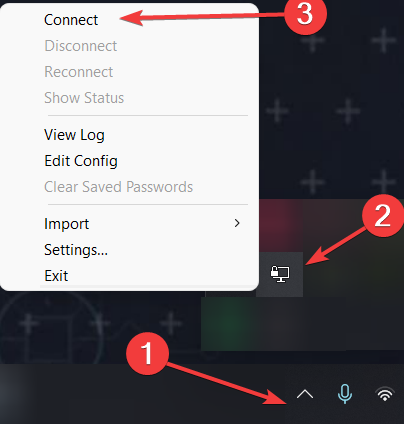
- Once this is done, click the small arrow at the bottom right, then OpenVPN and then connect.
- Check whether your IP address has really changed at https://www.watismijnip.nl/
Launch your server in 60 seconds on our own hardware.