How do I set up SSH keys?
For this guide you need an SSH client; in this article we use PuTTY.You can find the credentials (IP address and root password) in the email you received after ordering the VPS.
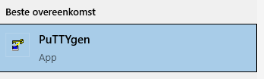
- Open PuTTYgen.
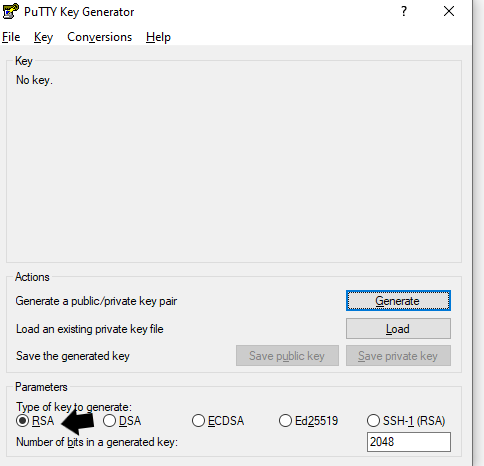
- Make sure Parameters Type to generate is set to rsa.
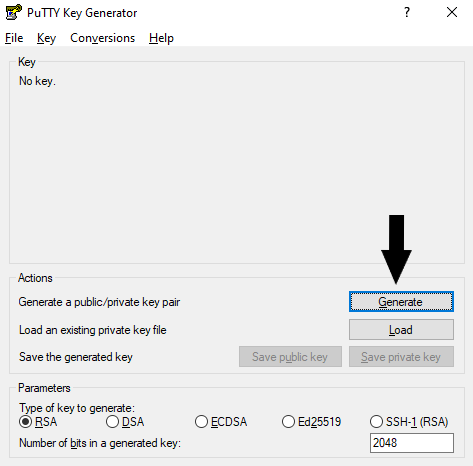
- Click the Generate button.
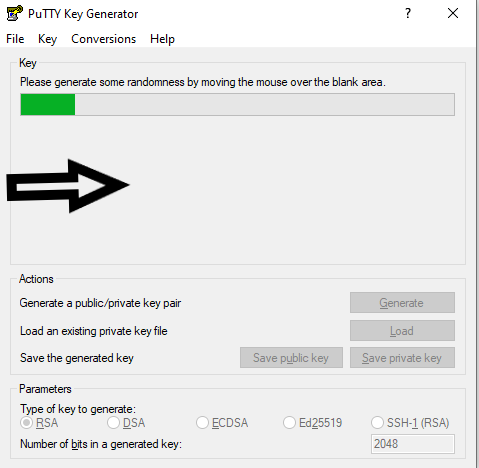
- Move your mouse back and forth over the empty area below the loading bar.
- Enter a strong password in Key passphrase and enter the same password in Confirm passphrase. (Note: if you forget this password, you will no longer be able to use your SSH key.)
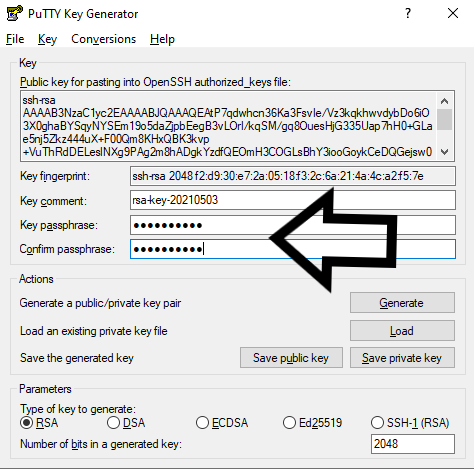
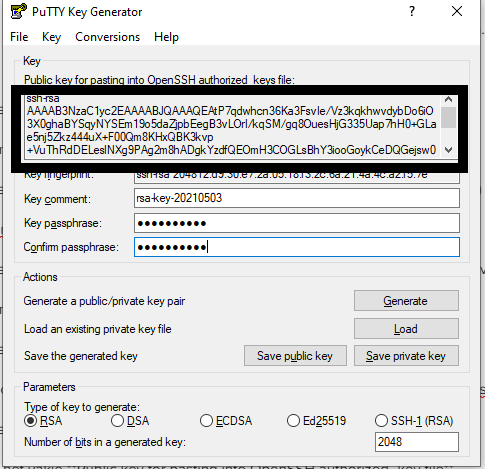
- Copy everything in the box Public key for pasting into OpenSSH authorized_key file and save it somewhere safe, because you will need it later.
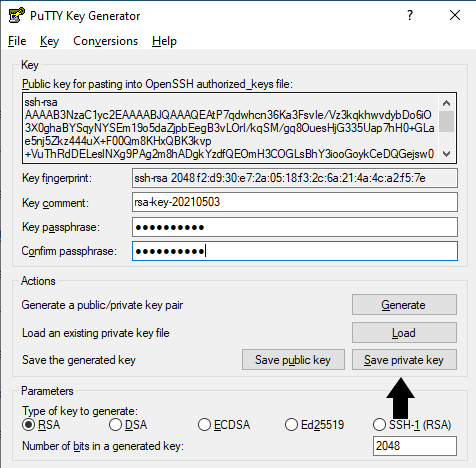
- Then click Save Private key. (Store this one safely as well.)
- Log in to the SSH of your VPS (this does not work with Windows VPSes, only with Ubuntu and CentOS VPSes).
- Use the following command to create the ~/.ssh directory if it does not exist yet, and add the authorized_keys file inside it.
mkdir ~/.ssh/ && touch ~/.ssh/authorized_keys
- Open the authorized_keys file with this command:
nano ~/.ssh/authorized_keys
- Paste the text you copied in step 6 using your right mouse button, then save the changes and close the file (ctrl + x > y > ENTER).
- The permissions on the .ssh folder and the authorized_keys file are set incorrectly by default. The .ssh folder should only have read, write, and execute permissions, and the authorized_keys file read and write permissions. You can change this with the following commands:
chmod 700 ~/.ssh/
chmod 600 ~/.ssh/authorized_keys
- SSH keys exist to better secure your server; for this to work properly you need to disable logging in with the normal password. To do this, open the SSH config file as follows:
sudo nano /etc/ssh/sshd_config
- Change the value of PasswordAuthentication to 'No', that is:
PasswordAuthentication no
Then save the changes and close the file (ctrl + x > y > ENTER).
- Finally, restart the SSH server to apply the changes:
systemctl restart sshdWith this article you should have been able to install SSH keys on your VPS/dedicated server. If it still didn't work, our staff is ready to help you: Contact us
Ready to try it yourself?
View packages →Launch your server in 60 seconds on our own hardware.
Stuck? Our team is happy to help.Open a ticket →
More in this category
How do I activate my Windows license?Connect to your VPS via remote desktop, open cmd, run slmgr.vbs -rearm and restart the VPS to activate your Windows liceHow do I change my operating system?Changing the operating system on an OpenVZ VPS: go to the VPS panel, log in with the details from your mailbox, click yoHow do I change my root password?Go to the VPS Panel and log in with the credentials delivered to your mailbox. Click your VPS, click "Root/Admin PassworHow do I change the hostname of my VPS?Change the hostname of your VPS: log in to the VPS panel, select your VPS, click "Hostname", enter a new hostname and cl