I bought a FiveM server, what now?
I bought a FiveM server, what should I do now?
Congratulations on the purchase of your FiveM server! Here is a tutorial to help you get started with setting up and managing your server:
We will first explain how to start the server without txAdmin; later in this tutorial we will explain how to install txAdminStep 1: Getting access to your server.
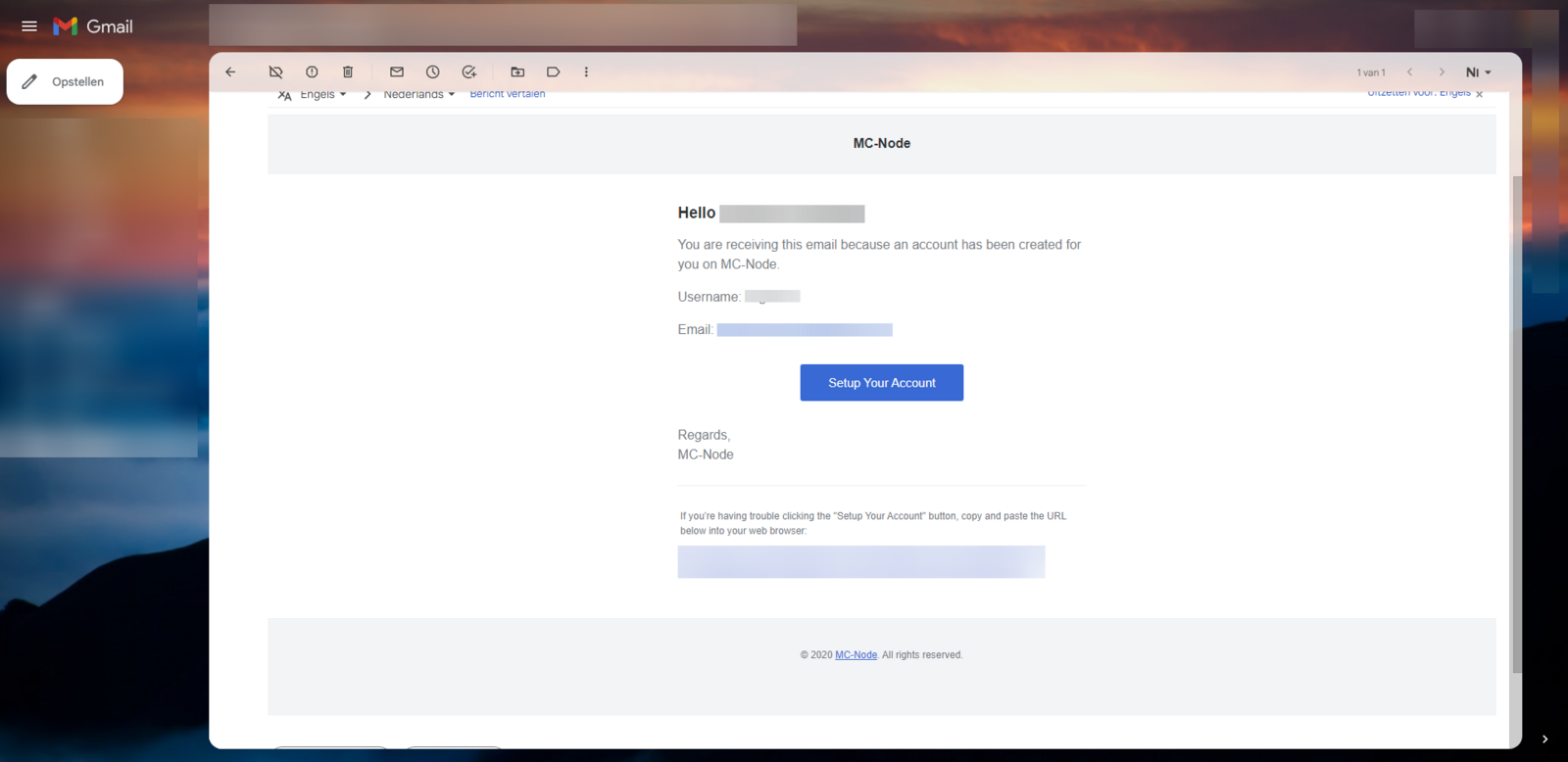
You received a number of emails after placing your order, including a payment confirmation but also an email to create an account on our game panel. Follow the steps described in that email. The subject of the email is 'Account Created
'.
Step 2: Creating a license key
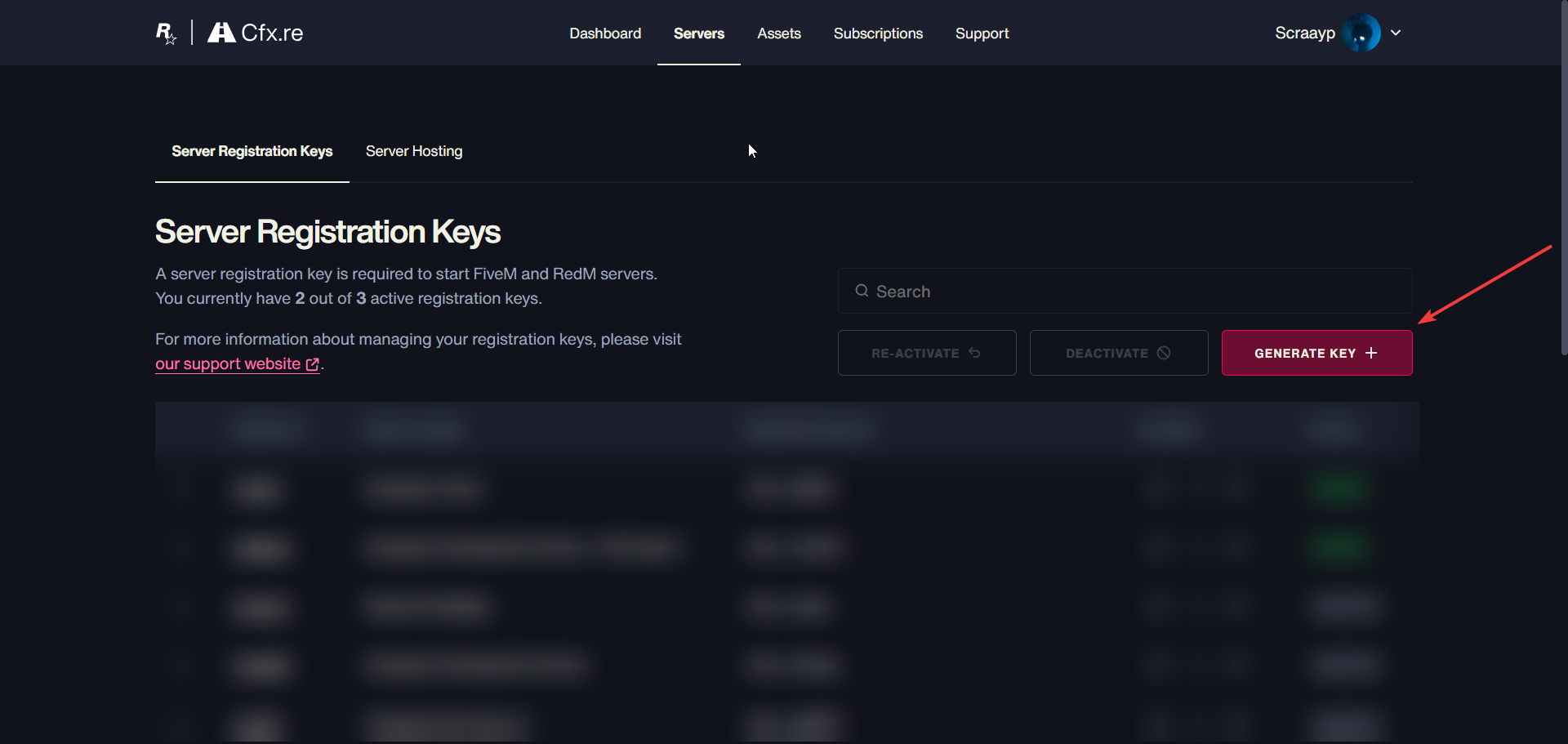
To be able to start the server you need a license key. You can create one for free at https://portal.cfx.re/servers/registration-keys; log in there with your account. Once you are logged in you will land on this page, then click 'Register a new server'
Then enter a name for your key; this is not your server name, so it stays private. Then click generate.
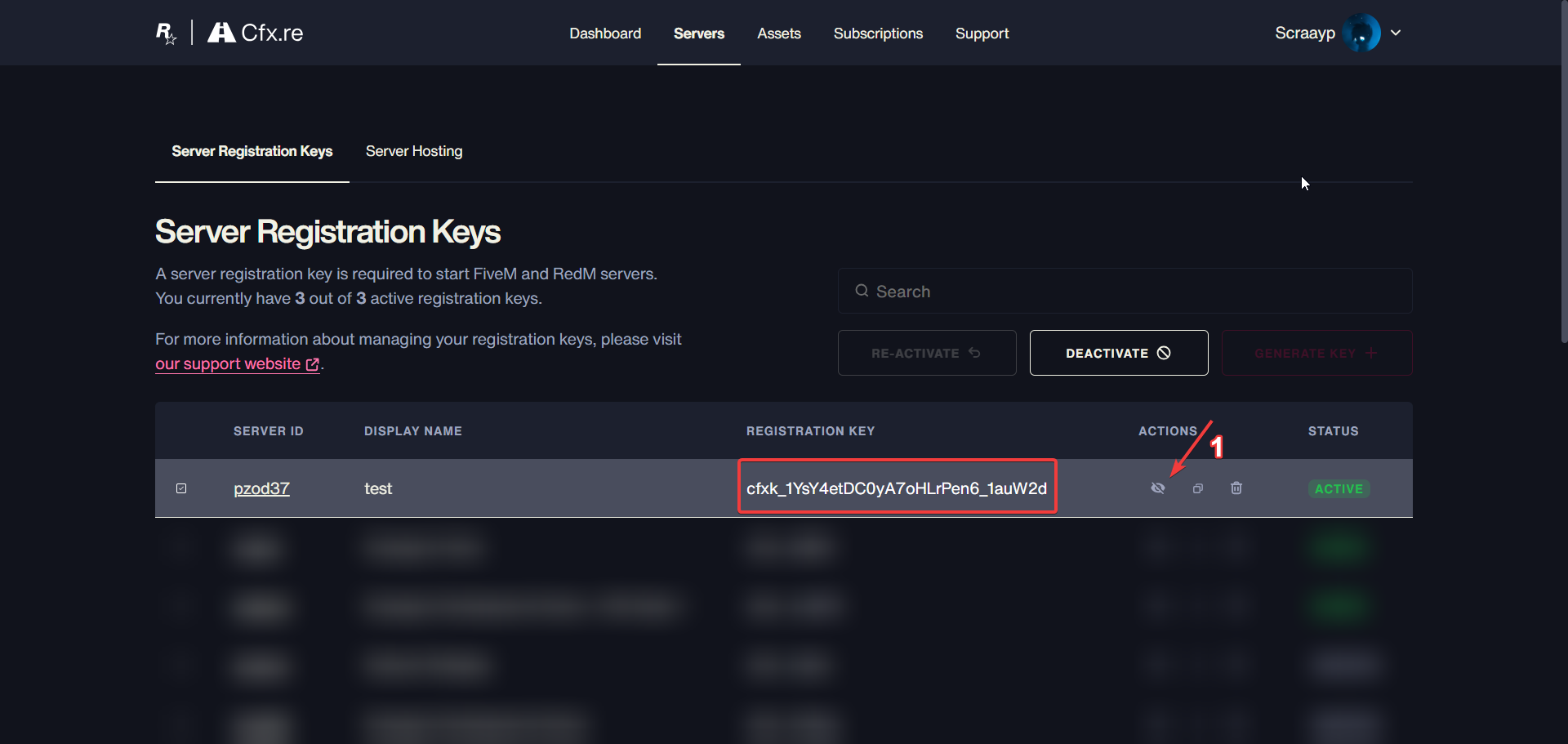
This is your license, copy it.
Step 3: Starting the server
Okay, you have now created a license key. All that is left is to start the server!
Open the panel you received in step 1 and go to your server:
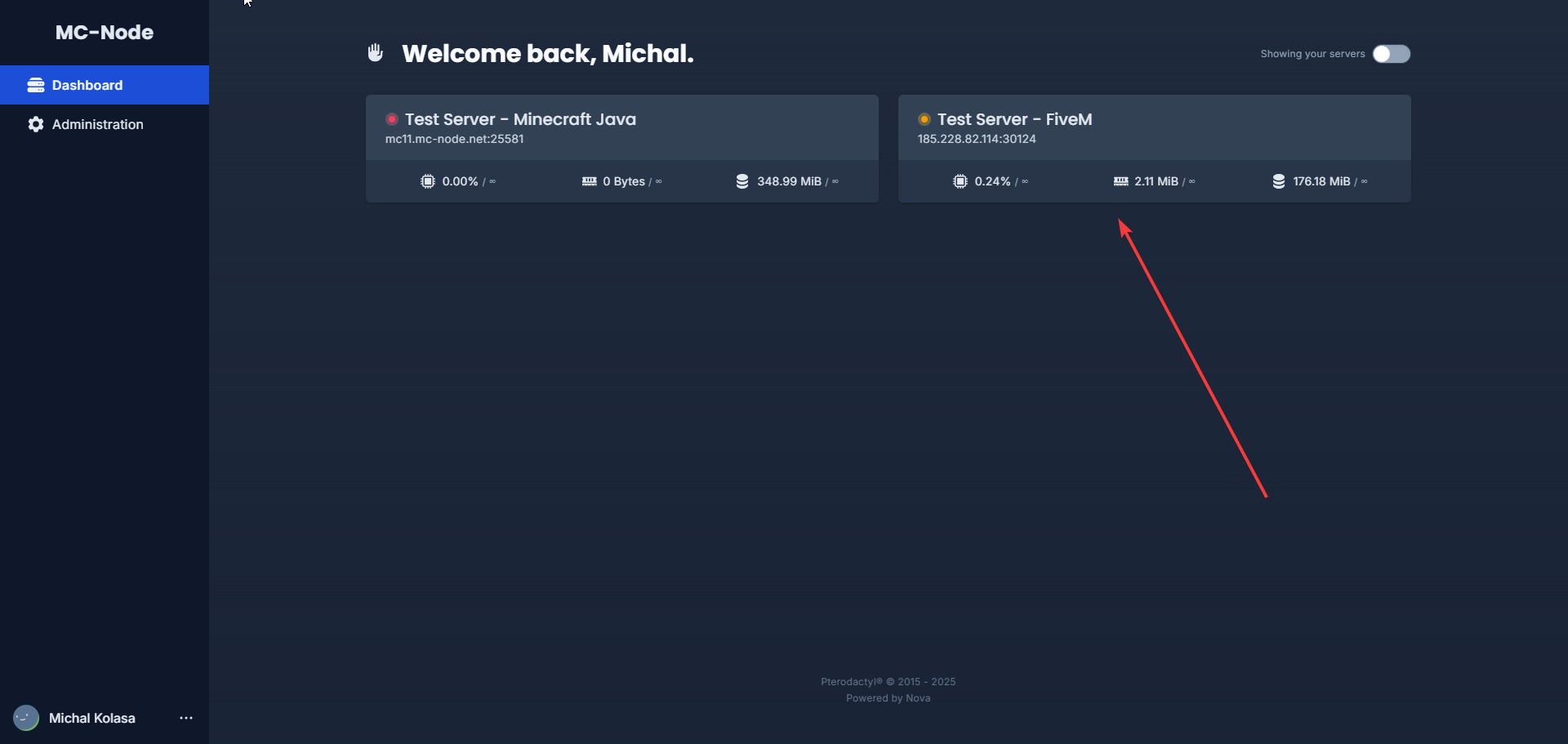
Go to settings and enter your license key:
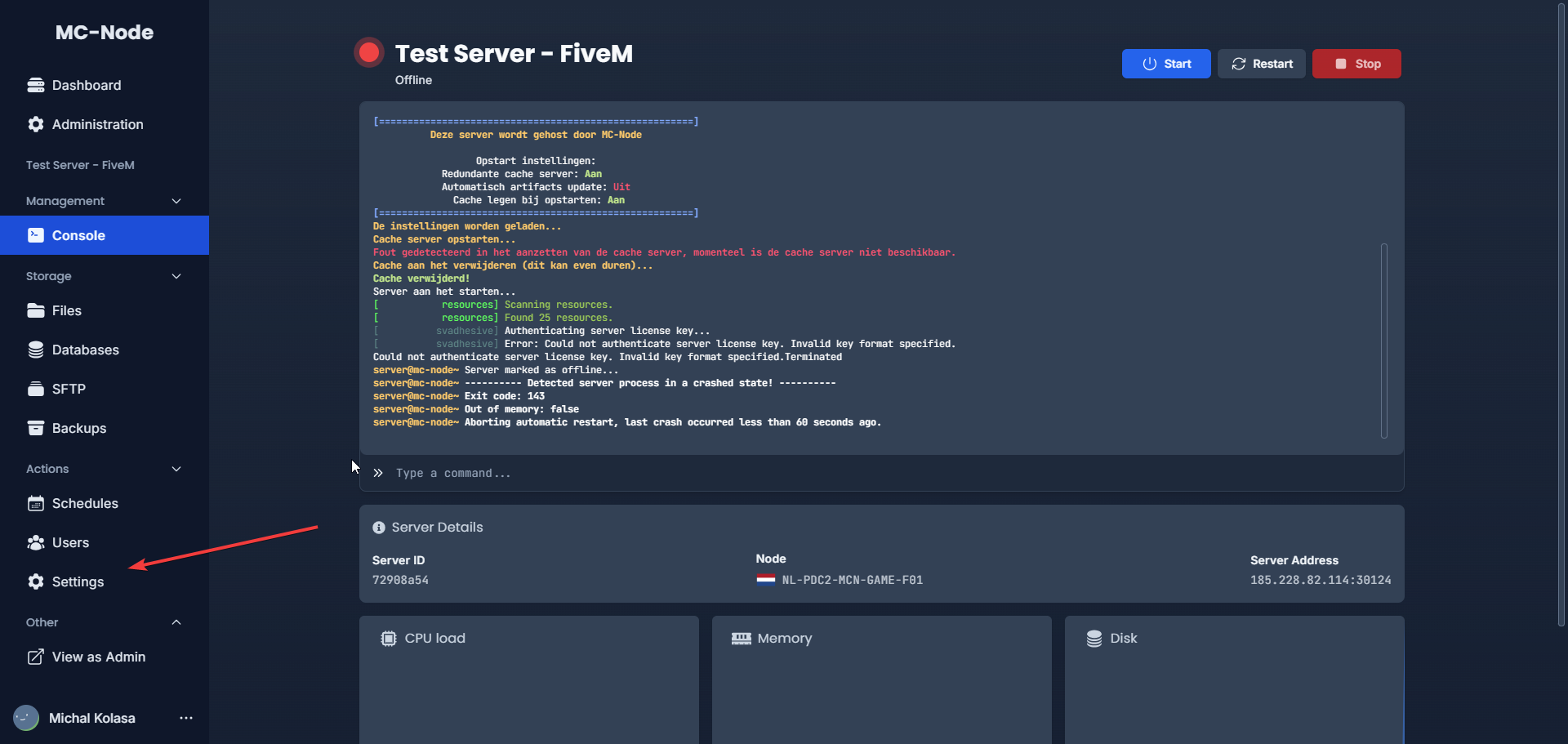

The server will now start up and you can now also find your server in the FiveM server list. From there you can join your own server!
You have now installed the basics of the FiveM server. Next we will explain how to install txAdmin on your server!Step 1: Enabling txAdmin
Click 'Settings', scroll down and then click 'Create Allocation'
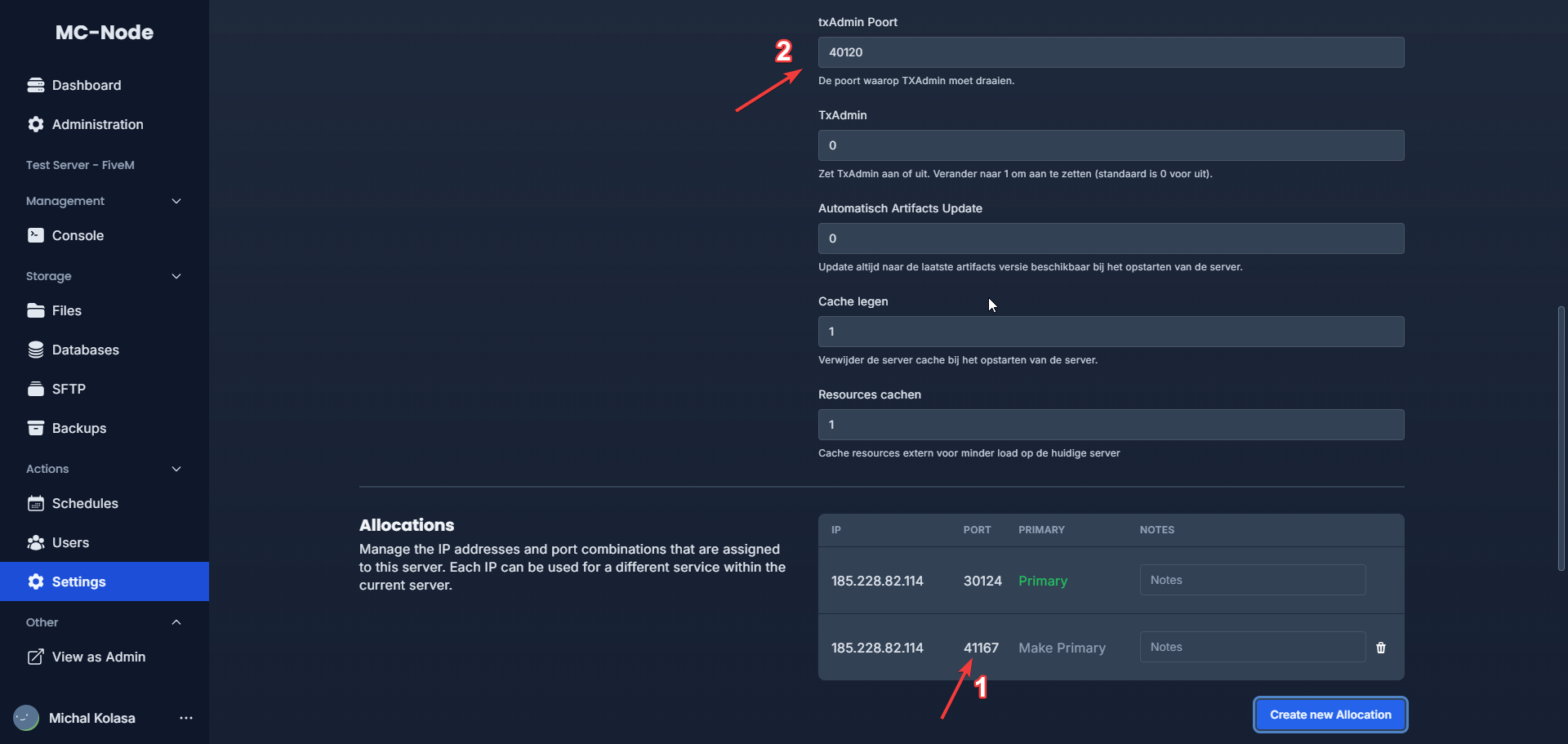
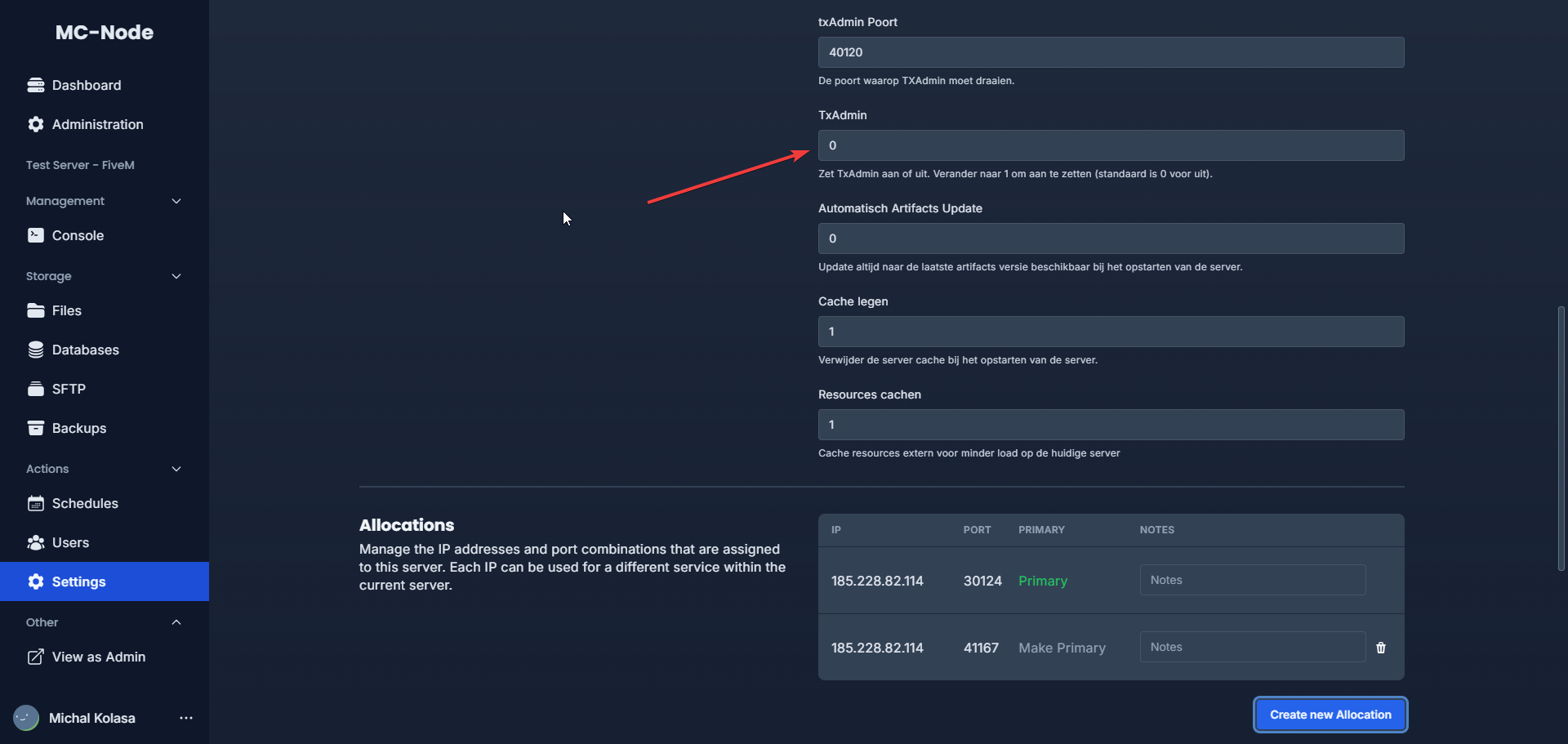
Once you have created the allocation, scroll back up and change the following settings
- Txadmin: Change the 0 to 1.
- Txadmin Port: Change this to the port you just created.
Launch your server in 60 seconds on our own hardware.