I bought a Minecraft server, what now?
I bought a Minecraft server, what should I do now?
Congratulations on the purchase of your Minecraft server! Here is a tutorial to help you get started with setting up and managing your server:
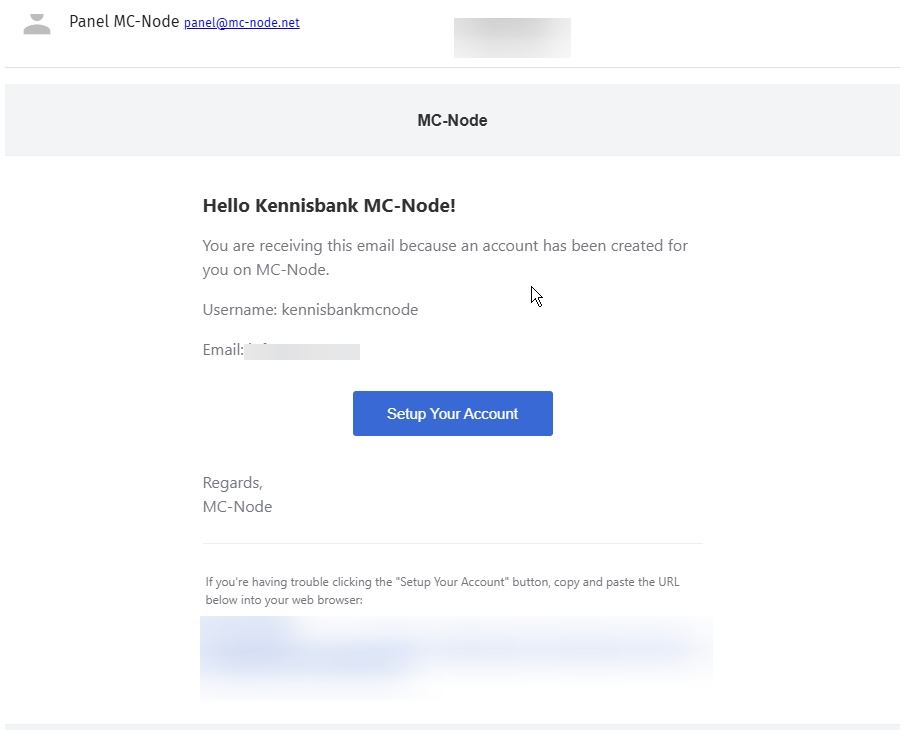
- Go to the mailbox you used for your order and look for the email: "Account Created". Open the email and click "Set up my account"
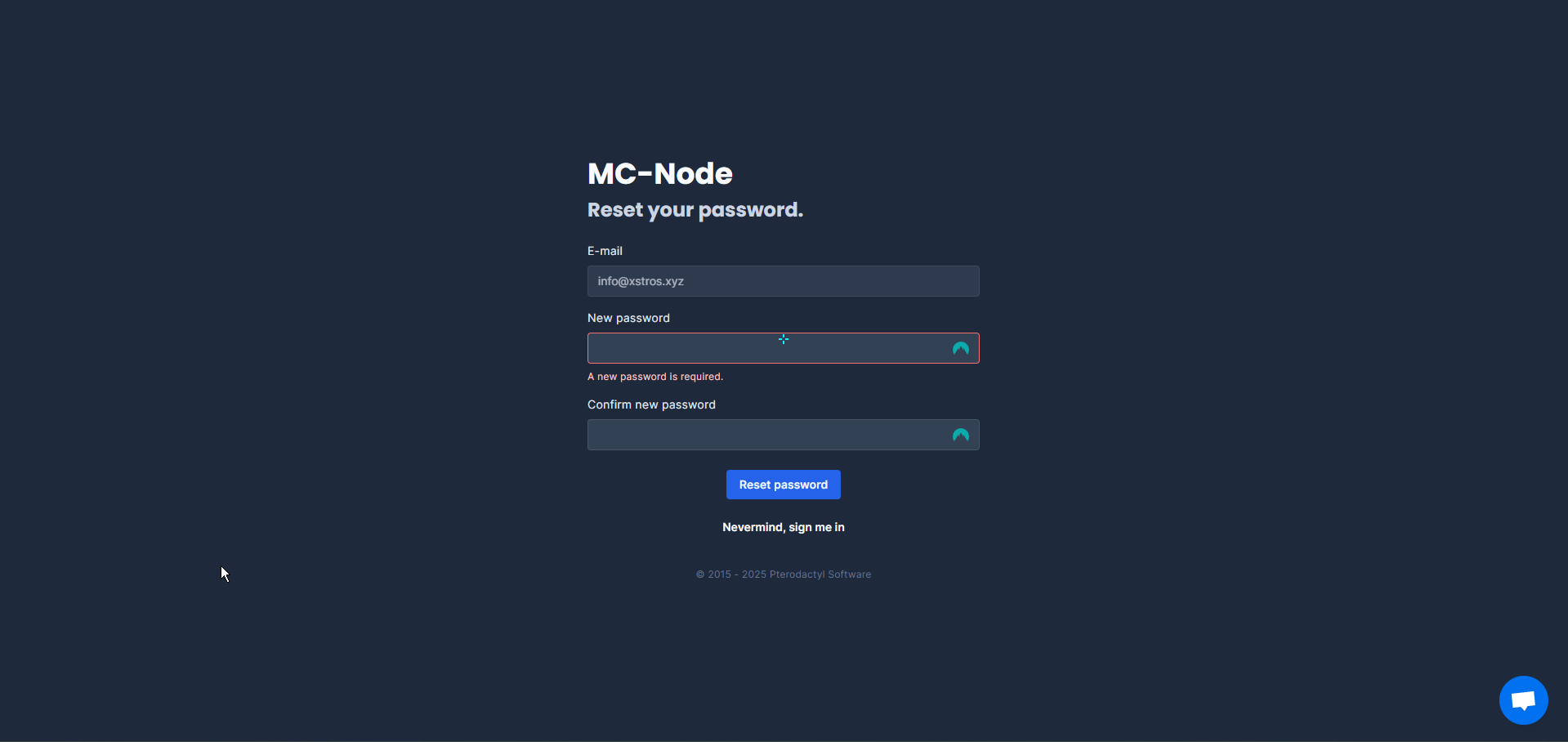
- You will now be sent to our game panel where you need to set a password for our game panel. Please note: the login for our client panel (client.mc-node.net) is DIFFERENT from our game panel!
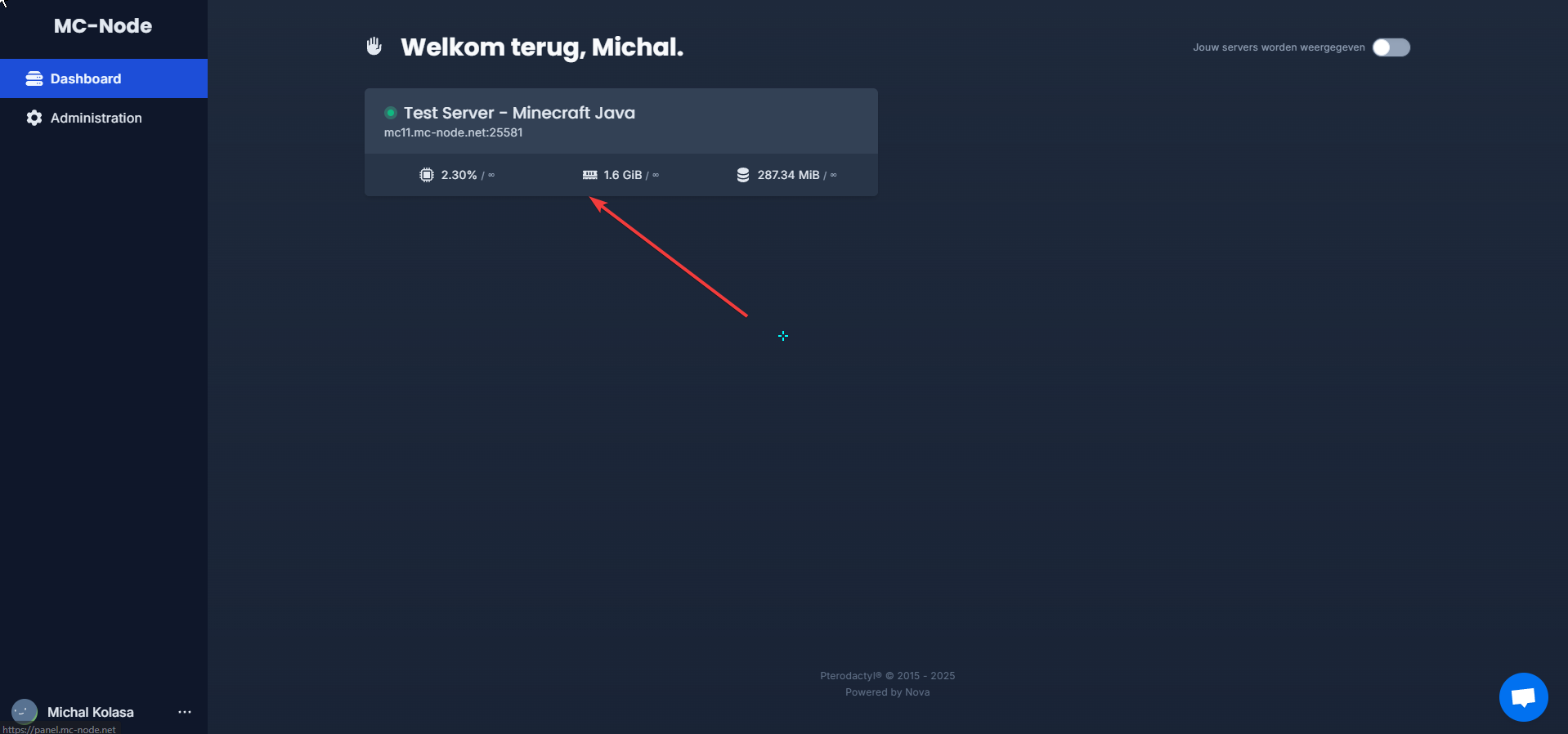
- You will now see the Minecraft server you ordered and you can click on it.
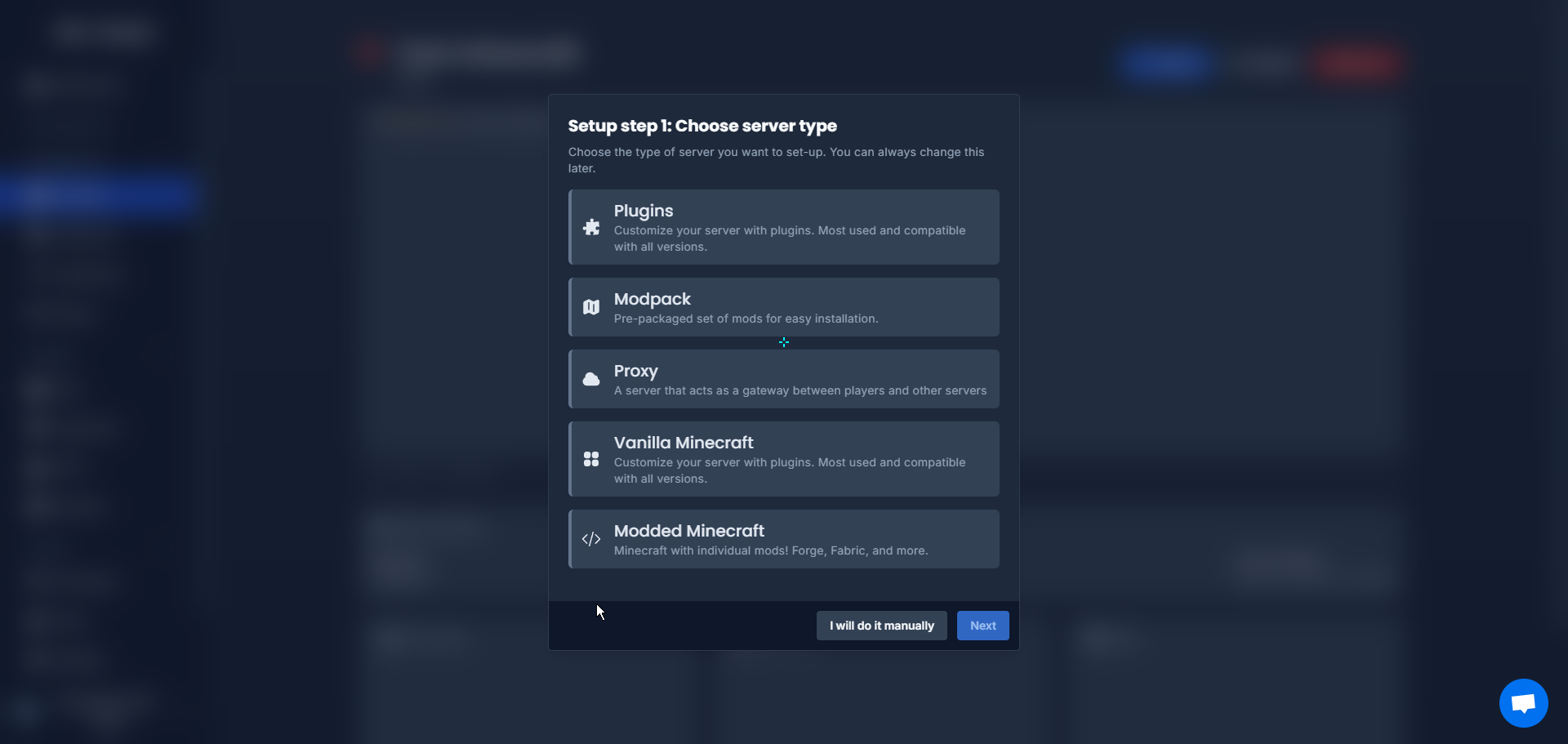
- Click on the server type
- Select your version.
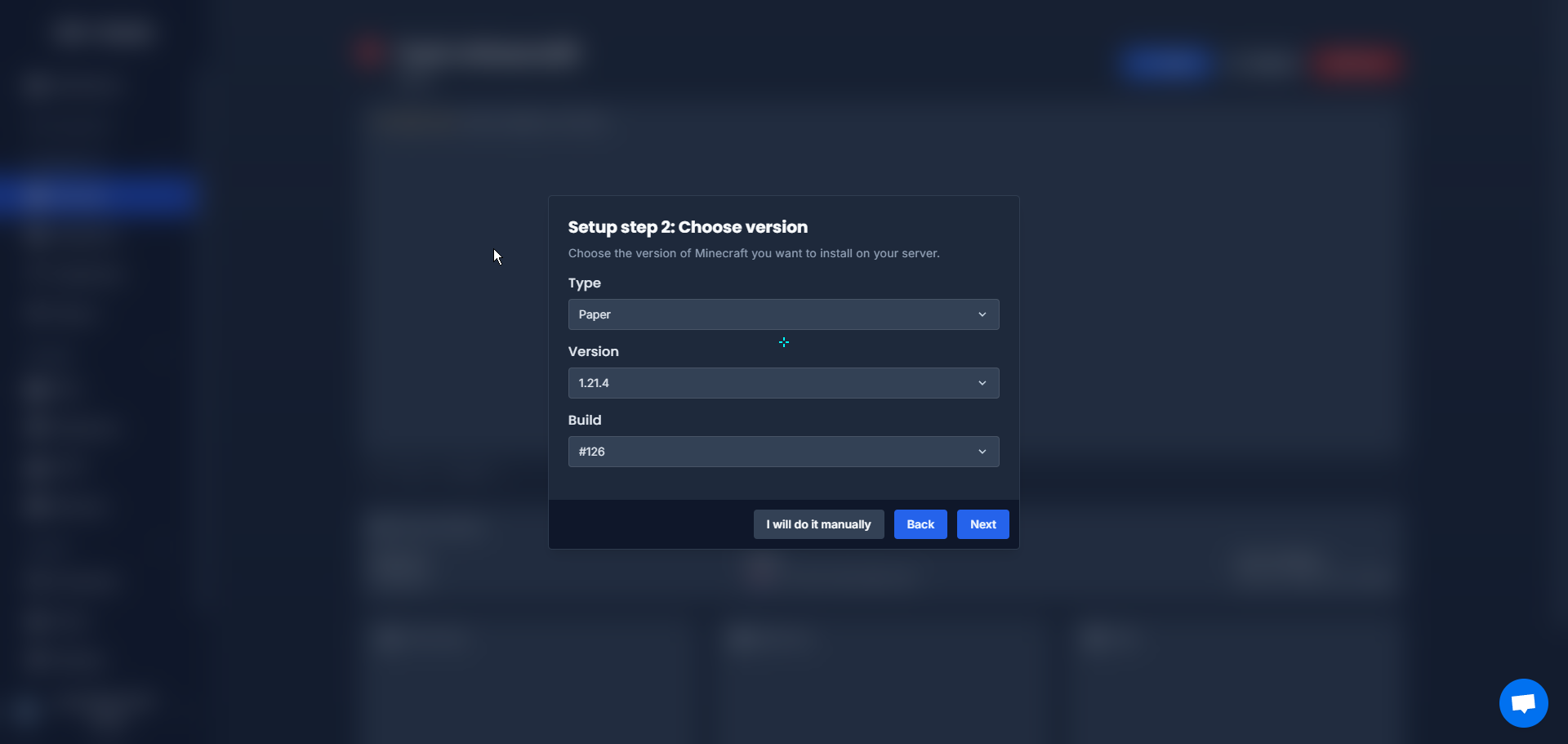
- Click start server
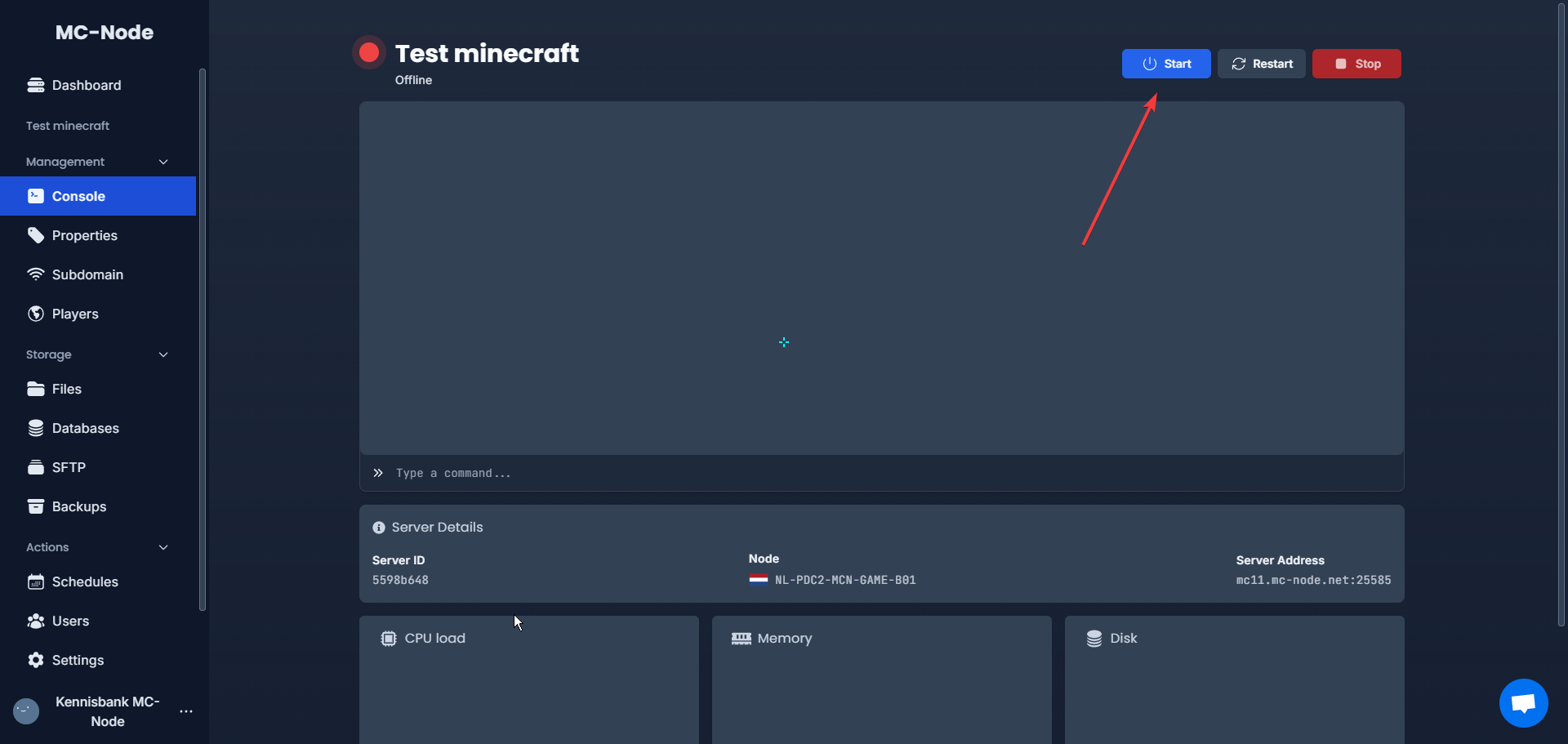
- Your server will now start up and after a while you will get a message that you need to accept the EULA; click "I accept".
Ready to try it yourself?
View packages →Launch your server in 60 seconds on our own hardware.
Stuck? Our team is happy to help.Open a ticket →
More in this category
Can I transfer my current server to MC-Node?Yes, you can transfer your current server to MC-Node. Download your server from your current host and upload it to us viHow do I add a resource pack to my server?Add a resource pack to your Minecraft server: upload it to Dropbox, copy the share link, and set it in the resource-packHow do I add a server icon to my Minecraft server?Add a server icon: upload a 64x64 PNG named server-icon.png to the server's root folder, restart and check the list. PluHow do I add a subdomain?Go to the game panel, open your server and click "Subdomain". Click "Create subdomain", enter a name, pick a domain and