Satisfactory dedicated server setup: claiming and save games
Satisfactory dedicated server setup mostly happens inside the game itself. You start the server, open the Server Manager from the main menu, add the server with the IP address and port from your panel and claim it: you give it a name and an admin password. After that, you start a new game or upload an existing save via the Manage Saves tab. Since update 1.1, besides the game port (7777 by default, UDP and TCP), the server also uses a second TCP port for "reliable messaging", 8888 by default.
To be fair: if you only play together while the host is online, a regular multiplayer session from within the game is enough. A dedicated server pays off when your factory needs to keep running while the host is offline. On PlayStation or Xbox it's no use to you: according to the community wiki (satisfactory.wiki.gg), dedicated servers aren't available for the console version.
Claim your Satisfactory server: how to become admin
A fresh server has no administrator yet: whoever claims it first sets the admin password. So do this right after the first start.
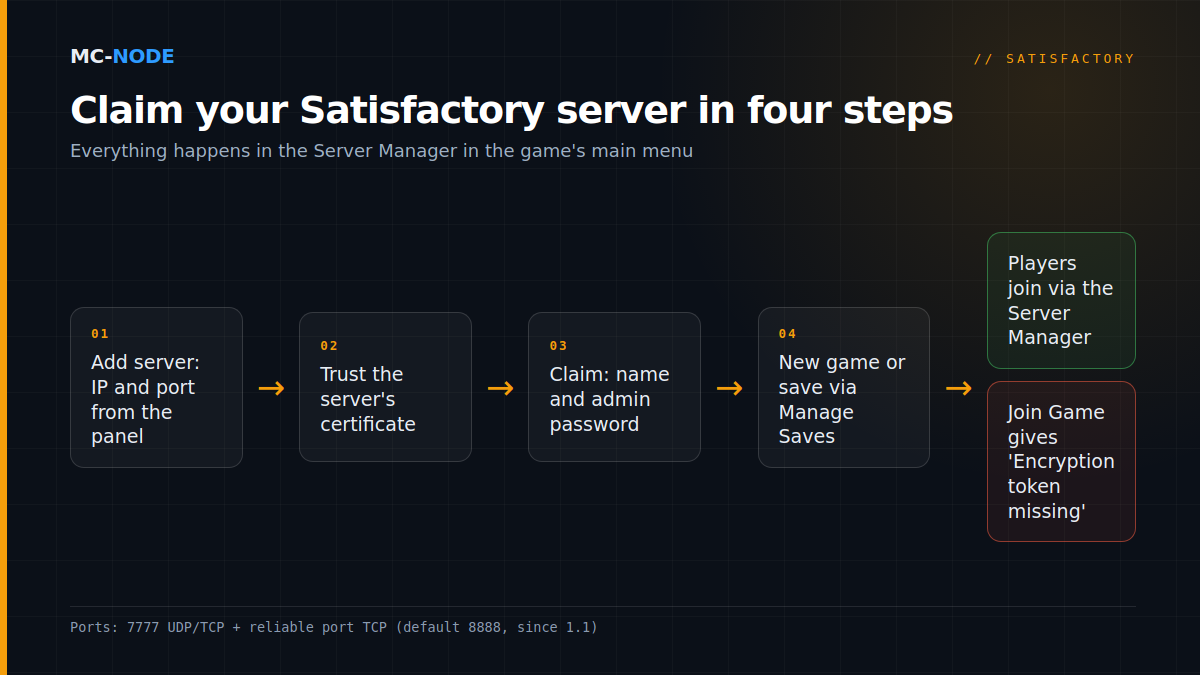
- Start the server in the game panel and note down the address: IP address and port. If you see a domain name instead of numbers, you can find the numeric address with this knowledge base guide.
- Open Satisfactory, choose Server Manager in the main menu and add the server with the IP address and port from the panel.
- Trust the certificate. The server uses its own TLS certificate; on the first connection, the game asks whether you trust it.
- Claim the server: give it a name and set the admin password.
- Optionally set a player password via Player Password Protection in the server settings. Yes, that's what the option for a join password is called; by default there isn't one.
The admin password gives access to loading saves, the server options and starting a new game; the player password only determines who can connect. So share the first one sparingly.
Start a new game or upload your single-player save
After claiming, you create a new game as admin in the Server Manager. Choose a clear session name and enter it under Auto-Load Session Name, so the server loads the latest save of that session after a restart.
Want to carry on with a factory you built locally? On Windows, your saves (Steam and Epic) are in:
%LOCALAPPDATA%\FactoryGame\Saved\SaveGames\<your ID>If you see two ID folders (Steam and Epic), the Steam ID is usually the shorter one, according to the wiki. Upload the save via your server's Manage Saves tab and then load it. It works the other way round too: as admin, you can download the save from the server.
On the server itself, the saves are in .config/Epic/FactoryGame/Saved/SaveGames/server, which you can reach through the file manager in the panel or via SFTP. Before moving anything, make a backup in the panel first.
Ports: 7777 and, since 1.1, a reliable port too
Since version 1.0, a Satisfactory server uses a single game port for UDP and TCP, 7777 by default; the old ports 15000 and 15777 are no longer used. Update 1.1, the default version since 10 June 2025, added a second port:
| Port (default) | Protocol | Used for |
|---|---|---|
| 7777 | UDP | Game traffic |
| 7777 | TCP | Server traffic and the HTTPS API |
| 8888 | TCP | Reliable messaging (since 1.1) |
The server passes the reliable port to the client itself while connecting, so players only enter the game port. If the reliable port can't be reached, players get stuck on the loading screen. At home, you therefore forward all three on your router. At MC-Node, the game port is the port in your panel; you'll find the reliable port in the Startup tab as "Reliable-poort (TCP)" (Dutch for "reliable port"). That number should also be listed among your server's ports. If it's missing and players hang on the loading screen, contact us: you can't change that variable yourself.
The settings that matter
As admin, you'll find the key options in the Server Manager:
- Auto Pause: pauses the server when nobody is online. Off means production keeps running 24/7, but then the server is also crunching numbers non-stop.
- Auto-Save on Player Disconnect: saves as soon as a player leaves. Turn it on.
- Autosave Interval (minutes): with a large factory, every save briefly costs performance.
- Network Quality: higher can improve loading times and network performance for players, but costs frame rate on the server.
Three settings that aren't in the Server Manager are startup variables in the Startup tab with us; the panel writes them to Game.ini and Engine.ini on every start:
- Max Players (default 4). According to the community wiki, that's where the server performs best; higher is possible, but it may come at the expense of performance.
- Number of Rotating Autosaves (default 3): how many autosaves rotate.
- Client Initial Connection Timeout (default 30 seconds). If players with a slow connection drop out while joining, set it to 60.
Updating: stable or experimental
With Automatic Updates on (the default), the server checks for a new version via SteamCMD on every start. So updating simply means restarting. Since 2 June 2026, the default version has been update 1.2; the latest patch at the time of writing is v1.2.4.0 from 11 August 2026.
Want to run Experimental? Under Branch Name, enter experimental and also turn on Validate Server Files for the switch (then turn it off again: validating slows down every start). Your players switch too: in Steam via Properties > Game Versions & Betas, in Epic via Satisfactory Experimental in the library. Coffee Stain hammers home the same point with almost every Experimental update: make a backup first. Back to stable? According to the wiki, Steam sometimes remembers the branch; in that case enter public and, if needed, restore your save from before the switch.
Mods: possible, but only if everyone's on board
You install mods with the Satisfactory Mod Manager (SMM) or ficsit-cli, from the modding community behind ficsit.app. According to their documentation, SMM 3.0 and later can also manage mods on a remote server via (S)FTP. In SMM, choose Manage Servers and fill in the details from the SFTP tab in the panel, using the folder that contains FactoryServer.sh as the path.
- Stop the server first. A running server keeps the mod files locked.
- Not every mod works on a server. On the mod page on ficsit.app, check whether the latest version has a tick in the Server column; SMM can filter for mods that are suitable.
- Everyone needs the same mods. Use one SMM profile for your own game and the server, and export that profile for your players.
- Can't get in? Test without mods first.
If you mostly play vanilla, start without them: every mod is an extra dependency at the next game update.
Common mistakes
- Connecting via Join Game. That gives "Encryption token missing". Have players add the server in the Server Manager and join from there.
- Lost the admin password. Stop the server and delete
ServerSettings.<port>.savin.config/Epic/FactoryGame/Saved/SaveGames/. This also resets the server name, the player password, the auto-load session and the certificate; then you claim the server again. - Too little memory. The community wiki names 8 GB of RAM as the minimum and 16 GB for large saves or more than four players, and the server leans heavily on fast single-core performance. It can work with less, depending on the number of players and the size of the save, but things get tight as soon as the factory grows. If you follow that recommendation, pick Explorer with us (8 GB, €12.00 per month) and, for a mega factory, Chief (16 GB, €24.00); all plans are on the Satisfactory page. Why it's mainly your factory that drives the load, you can read in Satisfactory server hosting.
- Editing ini files while the server is running. According to the community wiki, the server writes them out on a clean shutdown, so your change can disappear. Stop first, then edit.
Our Satisfactory servers run on NVMe storage with DDoS protection, in Hengelo, Frankfurt, Warsaw and Beauharnois, and can be cancelled monthly: if your factory grows, you simply scale up.
Frequently asked questions
How do I claim a Satisfactory dedicated server?
Open the Server Manager from the main menu, add the server with the IP address and port from your panel and confirm the certificate. Give the server a name and an admin password. Whoever claims a fresh server first becomes its administrator, so do this straight away.
Which ports does a Satisfactory server use?
Port 7777 for UDP and TCP, and since update 1.1 a TCP port for reliable messaging (8888 by default). Players only enter the game port. If the reliable port can't be reached, they get stuck on the loading screen.
How do I upload my save to a Satisfactory server?
On Windows, your local saves are in %LOCALAPPDATA%\FactoryGame\Saved\SaveGames in a folder named after your ID. Upload the save as admin via the Manage Saves tab in the Server Manager and load it. With Auto-Load Session Name, the server loads that session automatically after a restart.
How much RAM does a Satisfactory server need?
The community wiki names 8 GB as the minimum and 16 GB for large saves or more than four players. The load grows mainly with the size of your factory, and fast single-core performance counts for a lot.