Valheim server admin: adminlist, bans and whitelist in 1.0
To make someone an admin on a Valheim server, you put their Platform User ID on its own line in adminlist.txt. That file lives in the server's save folder, on Linux .config/unity3d/IronGate/Valheim/. Banning works via bannedlist.txt or the ban command, and you set up a whitelist with permittedlist.txt. Since Valheim 1.0, a Steam ID starts with V_ instead of Steam_. So always copy the ID exactly as the game shows it, and restart the server after every change.
No /op: three text files decide who can do what
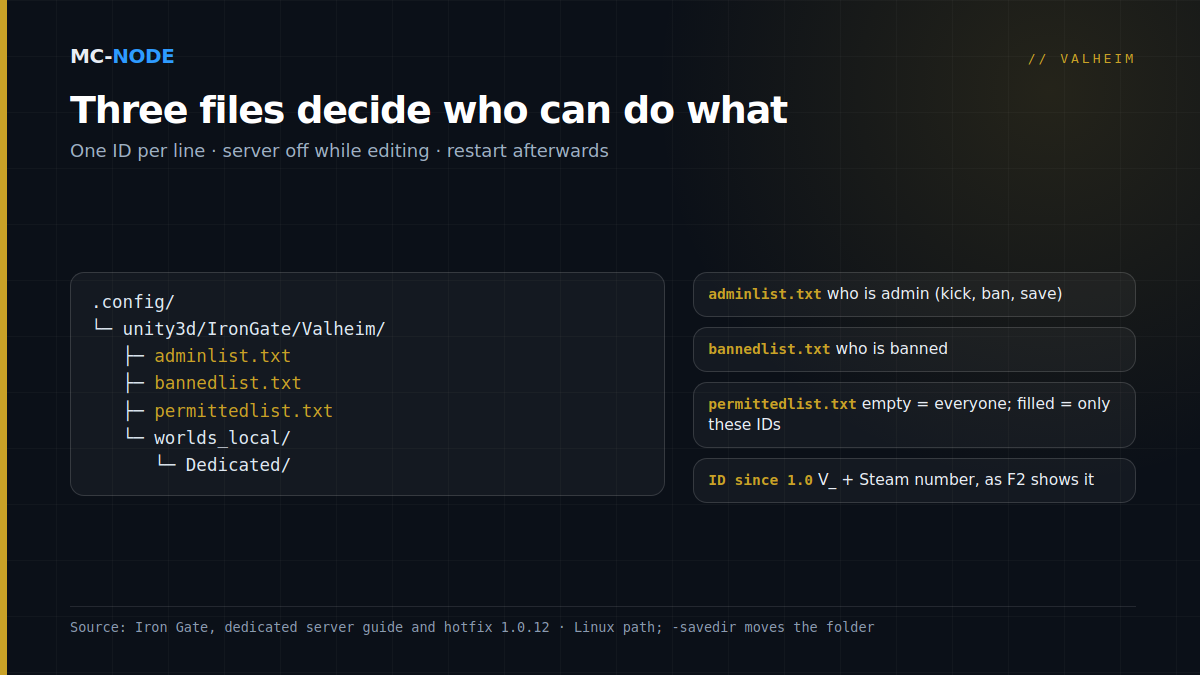
Valheim doesn't handle permissions with commands but with three files. Iron Gate describes them in its official guide to dedicated servers:
adminlist.txt: who has admin rights.bannedlist.txt: who is banned from the server.permittedlist.txt: who is allowed on the server. Careful: as soon as one person is on this list, everyone who isn't on it is locked out.
Each file takes one ID per line. Lines that start with // are comments. If you want to remember whose ID it is, put the name on its own comment line above it, never after the ID. Otherwise the server no longer recognises the ID, and you won't get an error message about it either.
The files sit in the server's default save path: on Linux ~/.config/unity3d/IronGate/Valheim, on Windows %USERPROFILE%/AppData/LocalLow/IronGate/Valheim. If you start the server with -savedir, they move along with it. On an MC-Node server you'll find them in the Files tab under .config/unity3d/IronGate/Valheim/, next to the worlds_local folder that holds your worlds. Iron Gate doesn't say whether the server picks up a change while it's running. So edit the lists with the server stopped and start it again afterwards; that way you know for sure they apply.
The right ID since 1.0: V_ instead of Steam_
According to Iron Gate, a Platform User ID has the form [Platform]_[User ID]. You'll find it in the F2 window in the game, or in the server log at the moment someone connects. For Steam players, that prefix changed with 1.0: where it used to be Steam_123456789, it's now V_123456789, followed by the same Steam number.
Right after the release, the ban list and whitelist only worked with the new IDs. Iron Gate fixed that in hotfix 1.0.12 (for Steam first), so old Steam_ lines should work there again. Don't count on it for the adminlist: for new lines, always use the ID that F2 shows now, including the prefix and capital letters.
Console players: same lists, different prefix
Xbox players have been able to join for a while, and since 1.0 PS5 and Switch 2 players can also play on servers with crossplay turned on. As far as the lists are concerned they're regular players, but their ID doesn't start with V_. For PlayStation players, the ID in the status screen starts with S_; Iron Gate hasn't officially documented the prefixes for consoles. So have a console player look up their ID in the status screen of their own game and copy it exactly. You can put a console player on the adminlist too. Whether they can open the console depends on the platform, but an admin can also kick players via the player list in the pause menu, without the console.
Console commands for admins
You enter admin commands in the game itself, not in the panel's Console: that only shows the server log. In Valheim, open the console with F5. For Steam, Iron Gate mentions the launch option -console for this.
| Command | What it does |
|---|---|
kick name | Kicks a player off the server; they can come straight back. |
ban name | Bans a player from the server. |
unban name | Lifts a ban. |
banned | Shows all banned players. |
save | Saves the world on the server immediately (admins only). |
Since patch 0.217.22, admins can also use world commands, such as setworldpreset, setworldmodifier, setkey, listkeys, skiptime and sleep. That list also includes players. It sounds like a player list, but according to the Valheim wiki it sets the difficulty scaling. To see who's online, check the player list in the pause menu.
Is ban not working, for example because two players have almost the same name? Then add the ID to bannedlist.txt by hand and restart.
devcommands and "cheated items" since 1.0
Admin rights aren't a licence to spawn things. Since 1.0, items you create with cheat commands get the label "cheated item". According to Iron Gate's 1.0 FAQ, most commands, such as spawn, put a mark on your character and your world save, after which achievements are blocked. Hotfix 1.0.12 added a devcommand to turn achievements back on anyway. Versions 1.0.14 and 1.0.15 fixed bugs that wrongly marked players and items as "cheated", and Iron Gate has announced another fix (as of 28 September). If you play with a group that cares about achievements, agree beforehand on what an admin will and won't do.
Whitelist, password and crossplay
A password is shared: whoever passes it on gives away the whole server. A whitelist works per person. For a regular group, the combination is strongest: a password against random visitors and a permittedlist.txt as the lock on the door. In our panel you set the password via the Server Password startup variable. It needs at least five characters and can't appear in the server name, otherwise Valheim won't start. If crossplay is on, don't forget the console players: without their ID in the whitelist, they can't get in.
How to add an admin in the MC-Node panel, step by step
- Have the player look up their ID with F2, or watch the panel's Console when they connect.
- Stop the server.
- In Files, open the folder
.config/unity3d/IronGate/Valheim/and openadminlist.txt. If the file doesn't exist, create it with exactly that name. - Put the ID on a new line, with no spaces or text after it, and click Save Content.
- Start the server and have the player join. Test with
bannedin the F5 console: if that works, they're an admin.
Prefer working in a proper editor? You can edit the same files via SFTP. If you want to give a co-admin access to the panel itself, for example to restart the server, add a subuser. That's separate from admin rights in the game.
Common mistakes
- Editing a list while the server is running. Restart afterwards, so you know for sure the change applies.
- The old ID, or just the Steam number. Since 1.0 it needs
V_in front, exactly as F2 shows it. - A name or comment after the ID on the same line. Put comments on their own line starting with
//. - The wrong folder. An
adminlist.txtin the server's root folder does nothing. It belongs next toworlds_local. - A different code from the log. With crossplay, the log contains several codes. Use the ID with the platform prefix, preferably as F2 or the status screen shows it.
When you don't need this
If you play with a handful of friends and a good password, a whitelist is unnecessary. You don't need admin rights to play either: they're handy for kicking, saving the world immediately or changing world settings via the console. And in our panel, you simply set most world settings in the startup variables anyway. No server yet? A Valheim server at MC-Node starts at €3.00 per month, with DDoS protection and monthly cancellation. How crossplay with console players works is explained in Valheim crossplay server: hosting PS5, Switch 2 and Xbox players with PC.
Frequently asked questions
How do I make someone an admin on my Valheim server?
Put that player's Platform User ID on its own line in adminlist.txt, in the server's save folder (on Linux .config/unity3d/IronGate/Valheim/). You'll find the ID with F2 in the game or in the server log. Stop the server before you edit the file and start it again afterwards.
Why has my Valheim adminlist stopped working since 1.0?
Since 1.0, a Steam ID starts with V_ instead of Steam_, and a bare Steam number doesn't work. Copy the ID exactly from the F2 window and put nothing after it on the same line. Restart the server after every change.
How do I ban a player on a Valheim server?
As an admin, open the console with F5 and type ban followed by the player's name; unban lifts the ban and banned shows the list. You can also add the ID to bannedlist.txt while the server is stopped. To kick someone without a ban, use kick or the player list in the pause menu.
How do I turn on a whitelist on my Valheim server?
Put the IDs of all allowed players in permittedlist.txt in the server's save folder. As soon as it contains a single ID, nobody else can join, including console players whose ID is missing. Restart the server after making changes.