How to make an Enshrouded server for 1.0: online with friends in minutes
You can make an Enshrouded server for 1.0 in six steps: choose a plan and location, place your order, set the name, passwords and slots in the panel, and join from the game via the server list or the IP address with the query port. After that, you can move your existing world over and hand out the roles. The server is created automatically after you order; setting it up then only takes a few minutes.
Co-op or a dedicated server: with a server, the world stays online
Without a server, you play in co-op: one player hosts the session from their own game, and that PC does the server work on top of playing. The world is stored on that PC. When the host stops, the session stops.
A dedicated server runs separately from the players. Keen: "The world progression is stored on the dedicated servers." The world stays online when you're offline, and your friends log in whenever it suits them. Your character, however, is stored on your own PC ("Character progression is stored only on clients"), so you take it with you to any server.
When you don't need a server: if you play with two or three regular friends, always at the same time and with the same host, co-op is free and works just fine. A server pays off as soon as you play at different times or there are more of you.
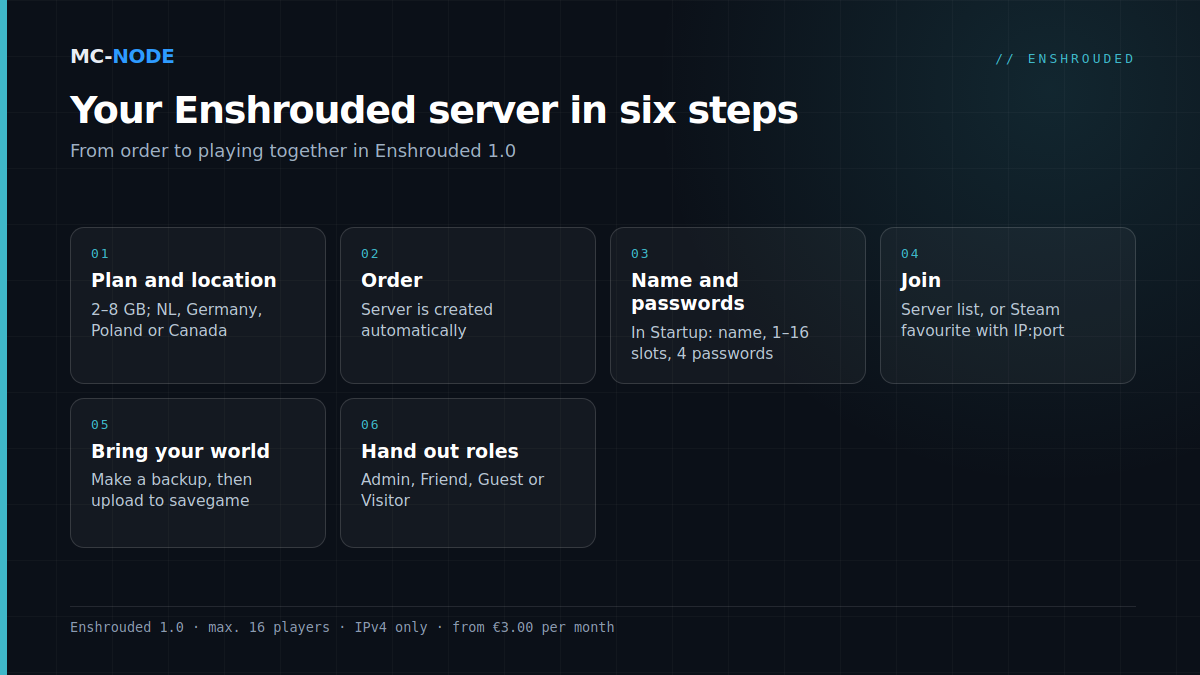
Step 1: choose the plan and the location
Keen gives a generous ceiling: about 4.4 GB of memory at idle, plus up to 100 MB per player, up to a maximum of about 6 GB. Our measurements under Proton come in lower: a 1.0 server on our 2 GB plan ran at about 1.1 GB with 2 players after 8 hours. Usage does grow with players and building, though. Our advice:
| Players | Plan | Price per month |
|---|---|---|
| 1–2, new world | Amateur, 2 GB (works, with little headroom) | €3.00 |
| 2–4 | Beginner, 4 GB | €6.00 |
| 5–10 | Traveller, 6 GB | €9.00 |
| 11–16, or a heavily built-up world | Explorer, 8 GB | €12.00 |
According to Keen's figures, Enshrouded doesn't need more than 8 GB; we haven't measured a full server with 16 players yet. The processor matters more: Keen lists 6 cores and 12 threads for 4 to 6 players and 8 cores and 16 threads for 16. More on that in How much RAM does an Enshrouded server need? Then choose the location closest to your group: the Netherlands, Germany (Frankfurt), Poland (Warsaw) or Canada (Beauharnois, listed in the store as "North America East").
Step 2: order and start your server
Order your plan in our Enshrouded store: AMD hardware, NVMe storage, DDoS protection and cancel monthly. The server is created automatically and appears in the game panel at panel.mc-node.net.
Start the server and follow along in the console. It's ready as soon as [Session] 'HostOnline' (up)! appears. According to Keen, the dedicated server only exists for Windows ("Linux support is planned for later"), which is why it runs under Proton with us. By default, the server fetches the latest version every time it starts. See also How do I start an Enshrouded server?
Step 3: set the name, passwords and slots
In the panel, open the Startup tab:
- Server Name: the name in the server list, up to 64 characters.
- Max Players: the number of slots, from 1 to 16.
- Four passwords, for the Admin, Friend, Guest and Visitor groups. A new server gets simple example passwords: replace all four. They can't be empty, can't consist of digits only and can't all be the same.
Then restart the server. The panel writes these values into enshrouded_server.json on every start, along with your port as queryPort. So change them in Startup; in the file, they get overwritten.
The game rules, on the other hand, do live in that file: gameSettingsPreset (Default, Relaxed, Hard, Survival or Custom) and the gameSettings block, whose individual values only apply with Custom. Edit it while the server is stopped. Which settings matter is explained in Enshrouded dedicated server: the settings that make the difference and in the knowledge base under managing your Enshrouded server.
Step 4: join via the server list or via IP and query port
In the Enshrouded main menu, choose Join. On the right, turn on "Show dedicated server" in the server filter, otherwise you won't see any dedicated servers. Look for your server name; the star makes it a favourite, and favourites are listed at the top.
If your server isn't listed, add it as a favourite in Steam, as Keen describes:
- Copy the IP address and port from the panel. That's the query port (15637 by default according to Keen; with us, the port shown in the panel).
- In the Steam client, open View and then Game Servers.
- In the Favorites tab, click the + and enter
IP:port.
The server then appears at the top of the list in the game. Use the IPv4 address: according to Keen, the server only works with IPv4. When joining, enter your group's password. If the list reports a version mismatch, restart the server so it fetches the latest version, and have your players update their game via Steam. And PS5 players can't join: there's no crossplay at launch.
Step 5: bring your existing world with you
A co-op world from your own PC
According to the 1.0 changelog, local saves are stored in C:\Users\<name>\Saved Games\keen games\Enshrouded\default; in the game, you choose per tab between that folder and Steam Cloud. Moving a world over works like this:
- Stop the server and make a backup in the panel.
- Connect via SFTP, for example with WinSCP or FileZilla, and open the
savegamefolder. - Put your world files there, replacing the world the server created itself.
- Start the server and check in the game that your base is there.
Note: Keen doesn't describe separately for 1.0 how to move a world to a server. According to the documentation, each world gets a fixed file name (the first one is called 3ad85aea), with ten numbered copies and an -index file; Keen doesn't say whether that stays the same in the new 1.0 format. If the server loads an empty world, compare your file names with the server's, or restore your backup.
An Early Access world
Early Access saves remain usable. The first time you load one in 1.0, the game first makes a backup and then automatically converts the save to a new, smaller format. The skill tree is reset, though, so everyone redistributes their points. Keen itself recommends starting fresh ("we strongly encourage you to start over"). Keen doesn't describe the conversion separately for servers, so make a backup before the first start on 1.0. See also Enshrouded 1.0 and your server.
Step 6: hand out the roles with the right passwords
A single server password no longer exists. Permissions run through userGroups in enshrouded_server.json: each group has a name, a password and the switches canKickBan, canAccessInventories, canEditWorld, canEditBase, canExtendBase and reservedSlots. The password someone joins with determines their role:
- Admin: edit bases, use chests, kick and ban players.
- Friend: edit bases and use chests.
- Guest: no editing bases, no chests.
- Visitor: like Guest, and also can't change the world outside the bases.
A practical split: Admin only for you and a co-admin, Friend for your regular group, Guest for new players who aren't allowed near your base yet. With "reservedSlots": 1 for Admin in the file, you keep a slot free, so you can still get in when the server is full. If a password leaks, change it in Startup and restart.
According to the 1.0 changelog, the groups work as before on a dedicated server. The new promoting and demoting during play is meant for people who host from within the game.
Frequently asked questions
How do I connect to an Enshrouded dedicated server?
In the Enshrouded main menu, choose Join and turn on Show dedicated server in the server filter. If your server isn't listed, add it in Steam via View, Game Servers and Favorites, with the IP address and the query port as IP:port. When joining, enter your group's password; that determines your permissions.
Can I move my co-op world to a dedicated server?
Yes. Stop the server, make a backup and put your world files in the savegame folder via SFTP. Keen doesn't describe this separately for 1.0, so keep that backup handy. You don't need to move your character: it's stored on your own PC and comes with you to every server.
Can PS5 players play on an Enshrouded server on PC?
No, not yet. Enshrouded has no crossplay at the launch of 1.0. Keen says it's working on it, but hasn't given a date yet.
Which port does an Enshrouded server use?
By default, Keen uses queryPort 15637, plus the ports Steam itself needs. The server only works with IPv4. At MC-Node, you use the IP address and port shown in the panel.