Game server on a VPS with SteamCMD: ports and systemd

With SteamCMD, the command-line version of Steam, you can put the dedicated server of games like Valheim, Palworld and Satisfactory on a Linux VPS. You install the steamcmd package, download the server with +login anonymous +app_update and the server's app ID, open the game ports in the firewall and let a systemd service start and update it.
When to run a Steam server on a VPS yourself
Your own VPS makes sense if you want more than one server: Valheim and Palworld side by side, a Discord bot on top, your own scripts, mods you maintain yourself, or simply learning how it works. You get root access and decide everything yourself, including when updates happen.
If you mainly want to play, a ready-made game server is less work: the panel takes care of installation, updates and settings. How that works for Valheim is covered in Valheim dedicated server: the complete guide, and for Satisfactory in Satisfactory dedicated server setup.
Which VPS for a Steam game server?
Choose Linux, for example Ubuntu 22.04 or newer: most Steam servers have a Linux version, and you keep more memory free than with Windows. For the CPU, the same applies as for almost every game server: the world simulation leans on one main thread, so a fast core counts more than many cores. That's why the Premium VPS with Ryzen 9 is a good fit here: AMD Ryzen 9 9950X*, DDR5 and NVMe. For memory we use these minimums, with about 1 GB extra for the operating system:
| Game | Memory for the server | Premium VPS | Per month |
|---|---|---|---|
| Valheim (up to 4 players) | from 4 GB, from 5 players 1–2 GB extra | 4 vCores, 8 GB | €15.30 |
| Palworld | 12–16 GB | 6 vCores, 16 or 20 GB | €28.00 / €33.60 |
| Rust | from 12 GB | 6 vCores, 16 GB | €28.00 |
A small Valheim server for a regular group can also run on the KVM VPS on EPYC: 4 vCores and 8 GB cost €9.50 per month there. The EPYC 7443P reaches up to 4.0 GHz, so less per core than the Ryzen; you mainly notice that as the world and the number of players grow. Running more than one game? Then add up the memory; how to go about that is covered in Multiple game servers on one VPS. How much memory Palworld really needs is explained in How much RAM does a Palworld server need?
* or AMD Ryzen 9 7950X3D, depending on the node.
Installing SteamCMD on Ubuntu
SteamCMD is in Ubuntu's multiverse repository and needs 32-bit libraries. Log in via SSH and run:
sudo add-apt-repository multiverse
sudo dpkg --add-architecture i386
sudo apt update
sudo apt install steamcmd
During installation, the package asks you to accept the Steam licence. The program ends up in /usr/games/steamcmd. Then create a separate user for your servers, so that a hole in a game server doesn't hand out root access straight away:
sudo adduser --disabled-password --gecos "" steam
sudo -iu steam
Downloading the server with app_update
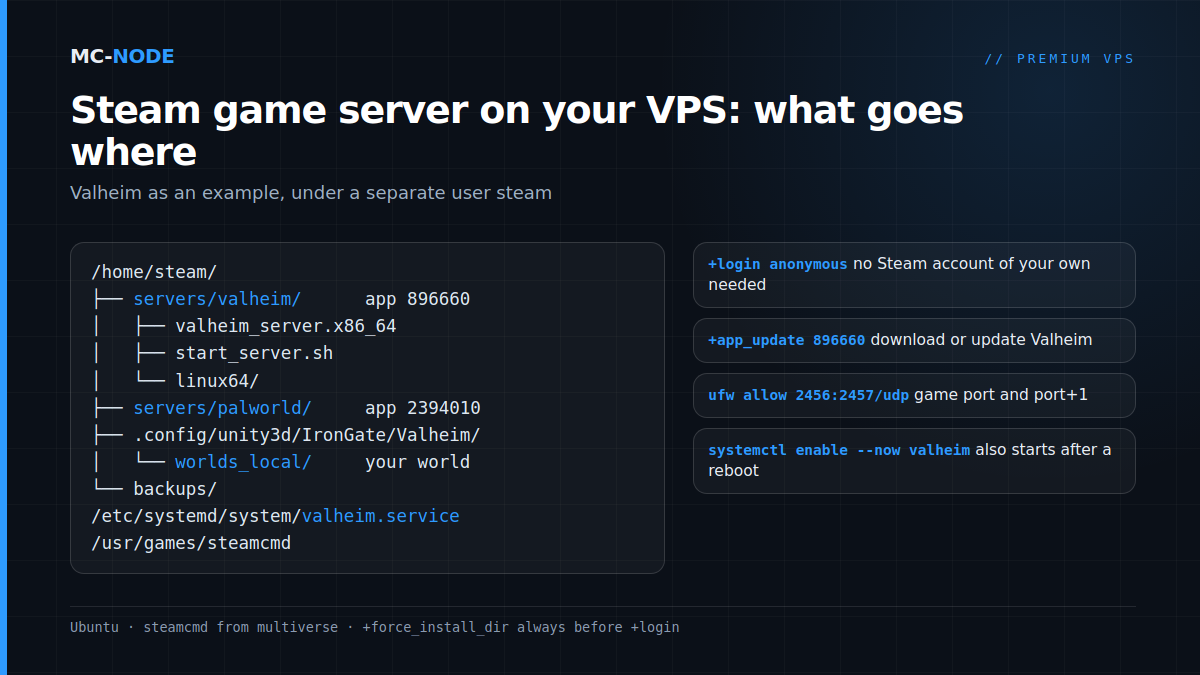
Every dedicated server has its own app ID on Steam. As user steam, you download Valheim, for example, like this:
steamcmd +force_install_dir /home/steam/servers/valheim +login anonymous +app_update 896660 validate +quitAlways put +force_install_dir before +login; the other way round, SteamCMD gives a warning. With +login anonymous you download most dedicated servers without a Steam account, so your own password doesn't need to be on the VPS. validate checks all files and restores any that were changed. Use it on the first download and when something seems broken, not on every update if you've modified files in the server folder yourself.
| Game | Server app ID | Linux server |
|---|---|---|
| Valheim | 896660 | yes |
| Palworld | 2394010 | yes |
| Satisfactory | 1690800 | yes |
| Project Zomboid | 380870 | yes |
| Rust | 258550 | yes |
| 7 Days to Die | 294420 | yes |
| Enshrouded | 2278520 | no, Windows only |
| ARK: Survival Ascended | 2430930 | no, Windows only |
Honest about Windows-only servers. Enshrouded and ARK: Survival Ascended don't have a Linux server. You can download the Windows version on Linux with +@sSteamCmdForcePlatformType windows before +login and start it under Proton or Wine, but that isn't officially supported and a game update can easily break it. Prefer stability? Go for Windows Server (selectable at checkout with the KVM VPS and the VDS, installed through the VPS panel with the Premium VPS), or a ready-made server as in How to make an Enshrouded server.
Ports and firewall
Only open the ports your game uses, and always SSH first, or you'll lock yourself out:
sudo ufw allow OpenSSH
sudo ufw allow 2456:2457/udp   # Valheim: port and port+1
sudo ufw allow 8211/udp        # Palworld
sudo ufw allow 7777            # Satisfactory, TCP and UDP
sudo ufw allow 8888/tcp        # Satisfactory, since version 1.1
sudo ufw enable
If you choose a different port in the startup options, adjust the rule to match. How to lock down SSH and the rest of the VPS is covered in Secure your VPS: the first 30 minutes.
Starting and updating automatically with systemd
Valheim ships with a start script, start_server.sh, but according to Iron Gate that file is reset on every update. So put your settings in a service of your own, /etc/systemd/system/valheim.service:
[Unit]
Description=Valheim dedicated server
Wants=network-online.target
After=network-online.target

[Service]
User=steam
WorkingDirectory=/home/steam/servers/valheim
Environment=LD_LIBRARY_PATH=/home/steam/servers/valheim/linux64
Environment=SteamAppId=892970
ExecStartPre=/usr/games/steamcmd +force_install_dir /home/steam/servers/valheim +login anonymous +app_update 896660 +quit
ExecStart=/home/steam/servers/valheim/valheim_server.x86_64 -name "Our world" -port 2456 -world "Dedicated" -password "pick-something-long" -public 1
KillSignal=SIGINT
TimeoutStartSec=600
TimeoutStopSec=60
Restart=on-failure
RestartSec=10

[Install]
WantedBy=multi-user.target
sudo systemctl daemon-reload
sudo systemctl enable --now valheim
journalctl -u valheim -fExecStartPrefetches the latest version first on every start. That's necessary, because after a game update players often can't connect again until the server runs the same version. Updating is then simplysudo systemctl restart valheim;TimeoutStartSec=600gives a big update the time it needs.KillSignal=SIGINTstops the server like Ctrl+C in the console: the shutdown method Iron Gate itself prescribes.TimeoutStopSec=60gives it a minute to stop cleanly.Restart=on-failurerestarts it after a crash, andenablemakes sure it starts up by itself after a reboot of the VPS.
The password must be at least 5 characters and must not appear in the server name, or Valheim won't start. For Palworld, you build the service the same way, with PalServer.sh in the installation folder as ExecStart and app ID 2394010; check each game's documentation for the startup options it supports. Want a fresh restart every night? Then add this to root's crontab: 0 5 * * * systemctl restart valheim.
Backups and saves: where is your world?
With Valheim on Linux, the world isn't in the server folder but in the user's home folder: /home/steam/.config/unity3d/IronGate/Valheim/worlds_local. Valheim also makes automatic backups itself, but they're on the same disk. So set up a copy yourself, for example every night with cron as user steam (create ~/backups first):
30 4 * * * tar -czf /home/steam/backups/valheim-$(date +\%F).tar.gz -C /home/steam/.config/unity3d/IronGate/Valheim worlds_localIn a crontab, the percent sign needs a backslash, hence \%F. Clean up old archives, for example with find /home/steam/backups -mtime +14 -delete, and regularly pull them to another machine or your own PC, for example via SFTP. A backup that only exists on the same VPS isn't a backup. Other games keep their saves elsewhere; look up per game which folder you need to take with you before you delete or reinstall anything.
Frequently asked questions
What is SteamCMD?
SteamCMD is the command-line version of Valve's Steam client. You use it to download and update dedicated servers of Steam games, without a graphical environment. On Ubuntu, you install it as the steamcmd package from the multiverse repository.
Do I have to log in with my own Steam account?
For most dedicated servers, no: with +login anonymous you download Valheim, Palworld, Satisfactory and Rust, among others, without an account. That way, no password of your own Steam account needs to be on the VPS. If a server does ask for an account, that's stated in the game's documentation.
Which game servers don't run on Linux?
Enshrouded and ARK: Survival Ascended only have a Windows server. On Linux it can work under Proton or Wine, but that isn't officially supported and can break with a game update. For those games, choose Windows Server on your VPS or a ready-made game server.
How much memory does a Steam game server need?
That differs per game. We assume at least 4 GB for Valheim (1 to 2 GB extra from 5 players), 12 to 16 GB for Palworld and at least 12 GB for Rust and ARK. Add about 1 GB for the operating system, and with multiple servers, add up the memory.