Secure your VPS: the first 30 minutes after ordering
The best time to secure a VPS is right after delivery, because bots soon scan a new IP address for open ports and weak passwords. In half an hour you lay the groundwork: updates, your own user, SSH keys, password and root login switched off, a firewall with ufw, fail2ban and automatic security updates.
Securing your VPS is your job: what to know beforehand
A VPS at MC-Node is self-managed: you get root access and manage updates and security yourself, although our support is happy to think along if you get stuck. The steps below assume Ubuntu, which you choose at checkout with the KVM VPS and the VDS and install yourself in the VPS panel with the Premium VPS. They apply to every Linux VPS, from the Budget VPS to the Premium VPS with Ryzen 9. Run the commands as root, or with sudo in front once you're working as your own user. Running Windows Server? Then skip to the part about RDP.
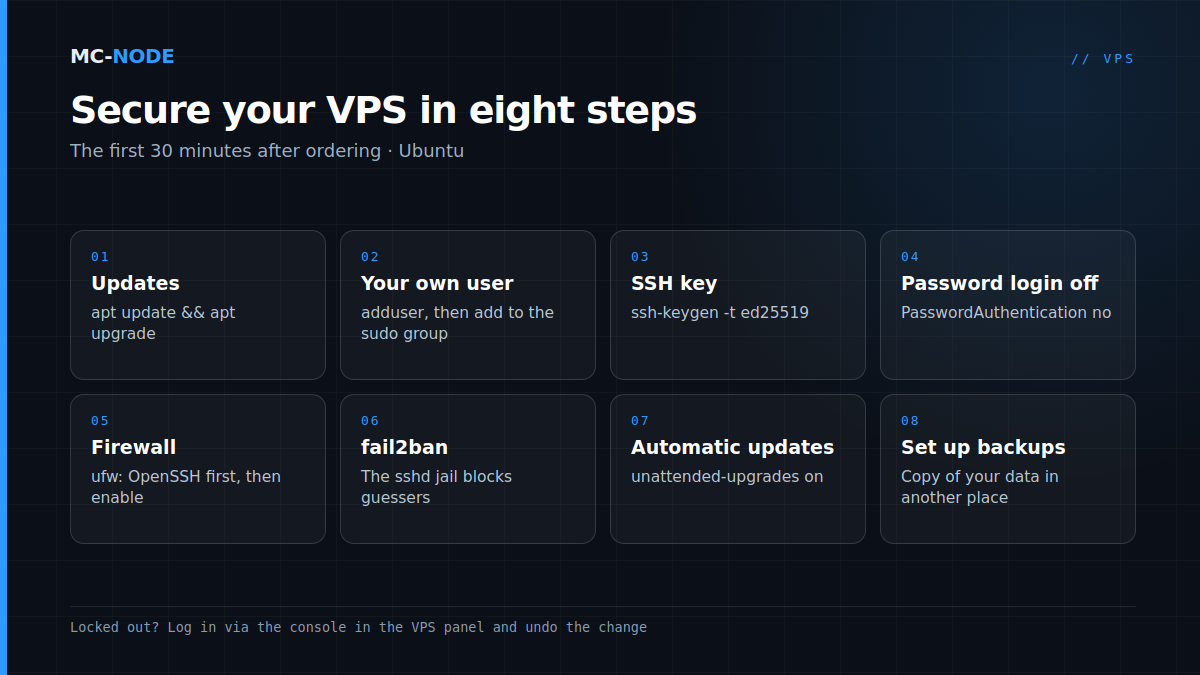
Step 1: updates and your own user
Log in with the details from your delivery email (see connecting via SSH) and update everything first:
apt update && apt upgrade -y
[ -f /var/run/reboot-required ] && reboot
The second line only reboots the VPS if an update asks for it, usually after a new kernel. Then change the root password with passwd (or via the VPS panel, see changing the root password) and create your own user with admin rights:
adduser yourname
usermod -aG sudo yourname
From now on you work as yourname and put sudo in front of admin commands. Root then no longer needs to log in directly, and you close that door in step 3.
Step 2: SSH keys instead of passwords
An SSH key is a key pair: the private part stays on your own computer, the public part goes on the server. Guessing is then a hopeless task, however often a bot tries. Create the pair on your own computer; Windows 10 and 11, macOS and Linux have ssh-keygen built in:
ssh-keygen -t ed25519Choose a passphrase, so that a stolen key file alone isn't enough. Then put the public part on the VPS. On macOS and Linux:
ssh-copy-id yourname@your-ipOn Windows, ssh-copy-id doesn't exist; in PowerShell you do the same with:
type $env:USERPROFILE\.ssh\id_ed25519.pub | ssh yourname@your-ip "mkdir -p ~/.ssh && cat >> ~/.ssh/authorized_keys"Prefer working with PuTTY? Then follow setting up SSH keys with PuTTYgen. Test in a new window: ssh yourname@your-ip should now log in without your account password, only with your key's passphrase.
Step 3: password login and root login off
Now that the key works, the door for passwords can close. Create a settings file of your own:
sudo nano /etc/ssh/sshd_config.d/00-hardening.confwith these two lines:
PasswordAuthentication no
PermitRootLogin no
Why the 00- in the name? OpenSSH uses the first value it encounters for each setting, and the files in sshd_config.d are read in alphabetical order, before the rest of sshd_config. Cloud images sometimes contain a file such as 50-cloud-init.conf with PasswordAuthentication yes; with 00- yours comes first. Check and restart:
sudo sshd -t && sudo systemctl restart ssh
sudo sshd -T | grep -Ei '^(passwordauthentication|permitrootlogin)'
The last line should show passwordauthentication no and permitrootlogin no. Only close your current session once you've been able to log in again in a second window.
Step 4: firewall with ufw (OpenSSH first!)
ufw closes everything you don't explicitly open. The order matters: allow SSH before you switch the firewall on, or you'll lock yourself out.
sudo ufw default deny incoming
sudo ufw default allow outgoing
sudo ufw allow OpenSSH
sudo ufw allow 25565/tcp
sudo ufw enable
sudo ufw status verbose
The line with 25565 is an example for a Minecraft server; only open the ports you really use. For FiveM that's port 30120 over TCP and UDP (see FiveM server on your own VPS); for Steam games, you'll find the ports in Game server on a VPS with SteamCMD. An admin port, such as txAdmin's (40120), you only open for your own IP address: sudo ufw allow from your-home-ip to any port 40120.
Watch out with Docker, and therefore also with Pterodactyl Wings: according to the Docker documentation, ports you publish with Docker bypass ufw's rules. So you manage those ports in Docker or in your game panel, not just in ufw. And on the Budget VPS you share the kernel with the host via OpenVZ: there, check with sudo ufw status verbose after switching it on whether the firewall is really active.
Step 5: fail2ban against brute force
fail2ban reads your log files and temporarily blocks an IP address after too many failed login attempts. On Ubuntu, the protection for SSH is active right after installation:
sudo apt install fail2ban
sudo fail2ban-client status sshd
Want stricter rules? Create /etc/fail2ban/jail.local. Don't edit jail.conf itself, because that file can be overwritten during an update.
[sshd]
maxretry = 5
bantime = 1h
Then run sudo systemctl restart fail2ban. With SSH keys only, nobody can guess your password anymore, but fail2ban keeps your logs clean and slows bots down. Banned yourself, for example after trying the wrong key a few times? Then remove your IP address via the console with sudo fail2ban-client set sshd unbanip your-ip.
Step 6: automatic security updates
On Ubuntu Server, unattended-upgrades is installed by default, and it installs security updates by itself. Check that it's switched on:
cat /etc/apt/apt.conf.d/20auto-upgradesIf you see APT::Periodic::Unattended-Upgrade "1";, you're good. If not, install it with sudo apt install unattended-upgrades and switch it on with sudo dpkg-reconfigure -plow unattended-upgrades. A new kernel only takes effect after a reboot, and automatic rebooting is off by default. If you do want that, put Unattended-Upgrade::Automatic-Reboot "true"; in /etc/apt/apt.conf.d/50unattended-upgrades, with a quiet time via Automatic-Reboot-Time. If a game server runs on it, make sure it starts up again by itself with systemd.
Windows Server: locking down RDP
On a Windows VPS, Remote Desktop (RDP, port 3389) is the door bots knock on. The basics:
- A long, unique password for Administrator, and no extra accounts with weak passwords.
- Leave Windows Update switched on, and actually finish updates with a reboot.
- In Windows Defender Firewall, restrict the Remote Desktop rule to your own IP address, via that rule's Scope tab.
- Keep Network Level Authentication on: then someone has to log in first before a session starts.
More about the licence, RDP and when Linux is the smarter choice is in Windows VPS; logging in itself is covered in connecting with Remote Desktop.
What DDoS protection does and doesn't do
Every VPS at MC-Node has DDoS protection via PletX's network, always on and included in the price (see how the DDoS protection works). It filters attacks that try to take down your connection with a flood of traffic. But a DDoS filter looks at traffic, not at who logs in: it won't stop a guessed password, a leaked token or a hole in an outdated plugin. That's what the steps above are for. For game servers, read more in what a DDoS attack is and securing your Minecraft server.
Your safety net: the console and a backup
Switched on ufw without an SSH rule, or made a typo in the SSH settings? Then your VPS isn't broken, just unreachable via SSH. The VPS panel has a console: you then work as if you're sitting at the server's screen, separate from SSH and the firewall. Log in there and undo the change, for example with sudo ufw disable or by deleting 00-hardening.conf.
On top of that, set up backups, preferably before you make big changes: put a copy of your configuration and your data somewhere other than the VPS itself, so that a mistake or a hack isn't the end of your project.
Frequently asked questions
How should I secure a new VPS?
First update everything and create your own user with sudo rights. Then log in with an SSH key, switch off password and root login, use ufw to close all ports except SSH and what you really use, and install fail2ban. Finally, check that automatic security updates are switched on.
Should I change the SSH port?
You can, but it isn't real security. A different port cuts down noise in your logs, because fewer bots find it; anyone searching on purpose will find it anyway. SSH keys, password login off and fail2ban do the real work. If you change the port, open the new port in ufw first.
What do I do if I've locked myself out?
Use the console in the VPS panel. It works separately from SSH and the firewall, so you can log in there and undo the change, for example with ufw disable or by deleting your new SSH settings file.
Does DDoS protection protect against hackers?
No, not against break-ins. DDoS protection filters attacks that try to flood your connection with traffic, and at MC-Node it's always on for every VPS. Against guessed passwords and holes in software, updates, SSH keys, a firewall and fail2ban are what help.
Is a VPS at MC-Node managed or unmanaged?
Self-managed: you get root or Administrator access and manage updates and security yourself. Our support is happy to think along if you get stuck. If you'd rather not do that management, a ready-made game server is often the better choice.